> ## Documentation Index
> Fetch the complete documentation index at: https://docs.perfai.ai/llms.txt
> Use this file to discover all available pages before exploring further.
# Reports
> Reports gives you a full audit trail of every security and privacy scan Perfai has run — exportable, filterable, and ready to share with stakeholders.
 ## What is the Reports page?
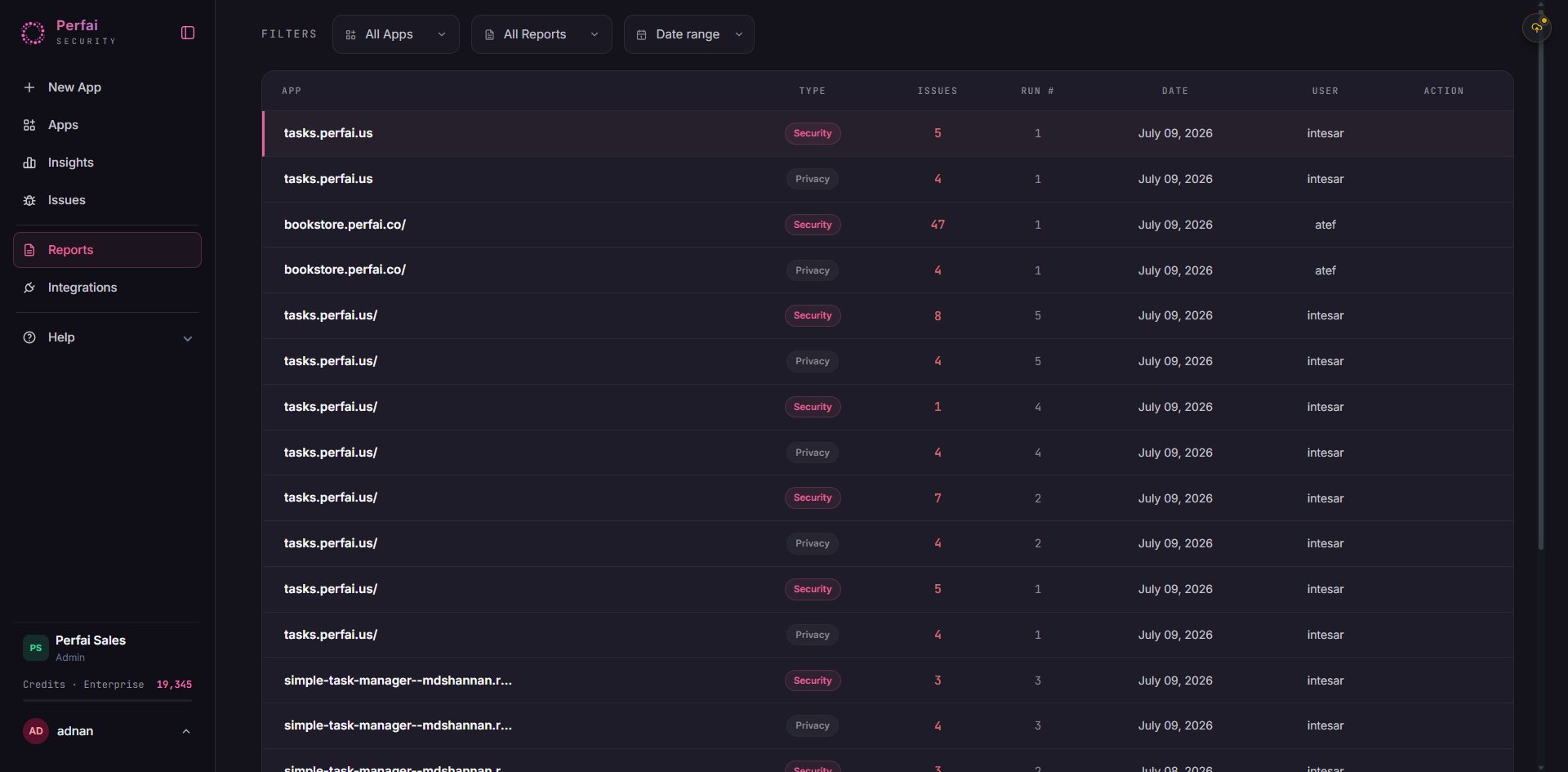
**Reports** is your complete scan history. Every time Perfai's Security Agent or Privacy Agent runs against an app, it produces a report — logged here with the app name, report type, issue count, run number, date, and the team member who triggered it.
This is where you go to:
* Download a security or privacy report to share with leadership, auditors, or clients
* Track how findings change between scan runs (did the latest deploy introduce new issues?)
* Demonstrate continuous security testing to compliance frameworks
* Hand off findings to development teams with full context attached
***
## The reports table
Each row in the reports table represents a single completed scan run:
| Column | Description |
| ---------- | ----------------------------------------------------------------------------------------------- |
| **App** | The application that was scanned |
| **Type** | **Security** (access control testing) or **Privacy** (data exposure and sensitive data testing) |
| **Issues** | Number of findings in this specific report. Red = has issues, green = clean |
| **Run #** | Which scan run this is for the app. Run 1 is the first scan; higher numbers are re-scans |
| **Date** | When the scan completed |
| **User** | The team member who triggered the scan (or "scheduled" if it ran automatically) |
| **Action** | `···` opens the report menu — view, download, or share |
***
## Report types
Perfai generates two types of reports:
Covers broken access controls — BOLA, privilege escalation, broken authentication, and all permission-based vulnerabilities found by the Security Agent. Mapped to OWASP API Security Top 10 and includes CVSS scores for every finding.
*Use for: security reviews, penetration test evidence, engineering triage, bug bounty comparison.*
Covers sensitive data exposure — which data types are accessible by which roles, whether PII is leaking across role boundaries, and data minimization gaps. Separate from the access control analysis.
*Use for: GDPR/CCPA compliance evidence, data protection audits, privacy impact assessments.*
Every app gets both a Security and a Privacy report on each scan run. You'll see them as paired rows in the table — one `Security` badge and one `Privacy` badge for the same app and date.
***
## Reading the issue count
The **Issues** column is the fastest way to see what changed between runs:
```
bookstore.perfai.co Security 122 Run 1 June 06
bookstore.perfai.co Security 34 Run 1 June 04
bookstore.perfai.co Security 15 Run 1 June 04
```
* A **rising** issue count between runs means new vulnerabilities were introduced — likely from a recent deploy
* A **falling** count means your team is fixing issues faster than new ones are being introduced
* A **0** means the scan ran clean — no findings for that report type
Filter by app to see its full scan history in chronological order. This gives you a clear before/after view of each release cycle and makes it easy to pinpoint which deploy introduced a regression.
***
## Filtering reports
Use the filters at the top to narrow your view:
| Filter | Options |
| --------------- | ----------------------------------------------------------------------- |
| **All Apps** | Filter to a specific app — useful when reviewing a single app's history |
| **All Reports** | Filter by report type: Security or Privacy |
| **Date** | Filter by scan date or date range |
***
## What's in a report
When you open or download a report, it contains:
Overall risk score, total findings by severity, key highlights — the one-page version for leadership and non-technical stakeholders.
Complete list of UI workflows, API endpoints, roles, and sensitive data types discovered by the Vision Agent for this scan run.
Every issue with severity, CVSS score, vulnerability category, affected endpoint, attacking role, expected vs. actual behavior, and a reproduction step.
Each finding mapped to OWASP API Security Top 10 (2023), OWASP Top 10, or Perfai's proprietary rules — ready to use as compliance evidence.
Specific fix recommendations for each finding category. Not generic advice — guidance based on what Perfai actually observed in your app.
***
## Downloading a report
Click the `···` menu at the right end of any report row, then click **Download**.
## What is the Reports page?
**Reports** is your complete scan history. Every time Perfai's Security Agent or Privacy Agent runs against an app, it produces a report — logged here with the app name, report type, issue count, run number, date, and the team member who triggered it.
This is where you go to:
* Download a security or privacy report to share with leadership, auditors, or clients
* Track how findings change between scan runs (did the latest deploy introduce new issues?)
* Demonstrate continuous security testing to compliance frameworks
* Hand off findings to development teams with full context attached
***
## The reports table
Each row in the reports table represents a single completed scan run:
| Column | Description |
| ---------- | ----------------------------------------------------------------------------------------------- |
| **App** | The application that was scanned |
| **Type** | **Security** (access control testing) or **Privacy** (data exposure and sensitive data testing) |
| **Issues** | Number of findings in this specific report. Red = has issues, green = clean |
| **Run #** | Which scan run this is for the app. Run 1 is the first scan; higher numbers are re-scans |
| **Date** | When the scan completed |
| **User** | The team member who triggered the scan (or "scheduled" if it ran automatically) |
| **Action** | `···` opens the report menu — view, download, or share |
***
## Report types
Perfai generates two types of reports:
Covers broken access controls — BOLA, privilege escalation, broken authentication, and all permission-based vulnerabilities found by the Security Agent. Mapped to OWASP API Security Top 10 and includes CVSS scores for every finding.
*Use for: security reviews, penetration test evidence, engineering triage, bug bounty comparison.*
Covers sensitive data exposure — which data types are accessible by which roles, whether PII is leaking across role boundaries, and data minimization gaps. Separate from the access control analysis.
*Use for: GDPR/CCPA compliance evidence, data protection audits, privacy impact assessments.*
Every app gets both a Security and a Privacy report on each scan run. You'll see them as paired rows in the table — one `Security` badge and one `Privacy` badge for the same app and date.
***
## Reading the issue count
The **Issues** column is the fastest way to see what changed between runs:
```
bookstore.perfai.co Security 122 Run 1 June 06
bookstore.perfai.co Security 34 Run 1 June 04
bookstore.perfai.co Security 15 Run 1 June 04
```
* A **rising** issue count between runs means new vulnerabilities were introduced — likely from a recent deploy
* A **falling** count means your team is fixing issues faster than new ones are being introduced
* A **0** means the scan ran clean — no findings for that report type
Filter by app to see its full scan history in chronological order. This gives you a clear before/after view of each release cycle and makes it easy to pinpoint which deploy introduced a regression.
***
## Filtering reports
Use the filters at the top to narrow your view:
| Filter | Options |
| --------------- | ----------------------------------------------------------------------- |
| **All Apps** | Filter to a specific app — useful when reviewing a single app's history |
| **All Reports** | Filter by report type: Security or Privacy |
| **Date** | Filter by scan date or date range |
***
## What's in a report
When you open or download a report, it contains:
Overall risk score, total findings by severity, key highlights — the one-page version for leadership and non-technical stakeholders.
Complete list of UI workflows, API endpoints, roles, and sensitive data types discovered by the Vision Agent for this scan run.
Every issue with severity, CVSS score, vulnerability category, affected endpoint, attacking role, expected vs. actual behavior, and a reproduction step.
Each finding mapped to OWASP API Security Top 10 (2023), OWASP Top 10, or Perfai's proprietary rules — ready to use as compliance evidence.
Specific fix recommendations for each finding category. Not generic advice — guidance based on what Perfai actually observed in your app.
***
## Downloading a report
Click the `···` menu at the right end of any report row, then click **Download**.
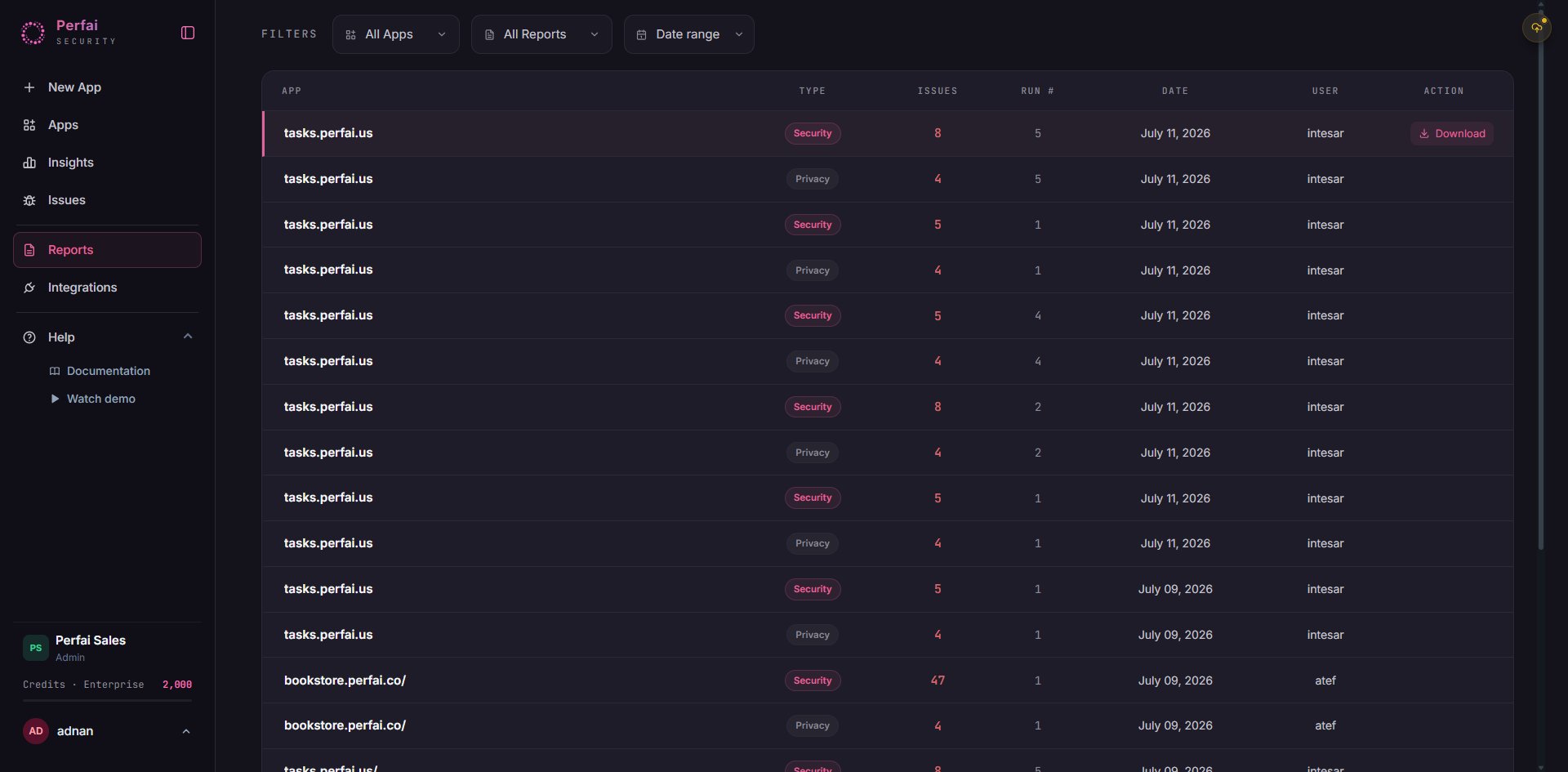 Perfai generates a formatted PDF report and downloads it immediately. The PDF includes the full executive summary, attack surface map, findings list with CVSS scores, standards mapping, and remediation guidance — ready to share with leadership, auditors, or clients without any additional formatting.
Each app produces a paired **Security** and **Privacy** report per scan run. Download both if you need complete coverage for a compliance submission.
***
## Sharing reports
From the `···` action menu on any report row:
* **Download** — generate and download a formatted PDF immediately
* **View** — open the full report in the dashboard
* **Export to Jira / Linear / GitHub** — push all findings as tickets with full context attached, so developers can start fixing without hunting for details
***
## Auto-sync: keep reports safe forever
Perfai generates a formatted PDF report and downloads it immediately. The PDF includes the full executive summary, attack surface map, findings list with CVSS scores, standards mapping, and remediation guidance — ready to share with leadership, auditors, or clients without any additional formatting.
Each app produces a paired **Security** and **Privacy** report per scan run. Download both if you need complete coverage for a compliance submission.
***
## Sharing reports
From the `···` action menu on any report row:
* **Download** — generate and download a formatted PDF immediately
* **View** — open the full report in the dashboard
* **Export to Jira / Linear / GitHub** — push all findings as tickets with full context attached, so developers can start fixing without hunting for details
***
## Auto-sync: keep reports safe forever
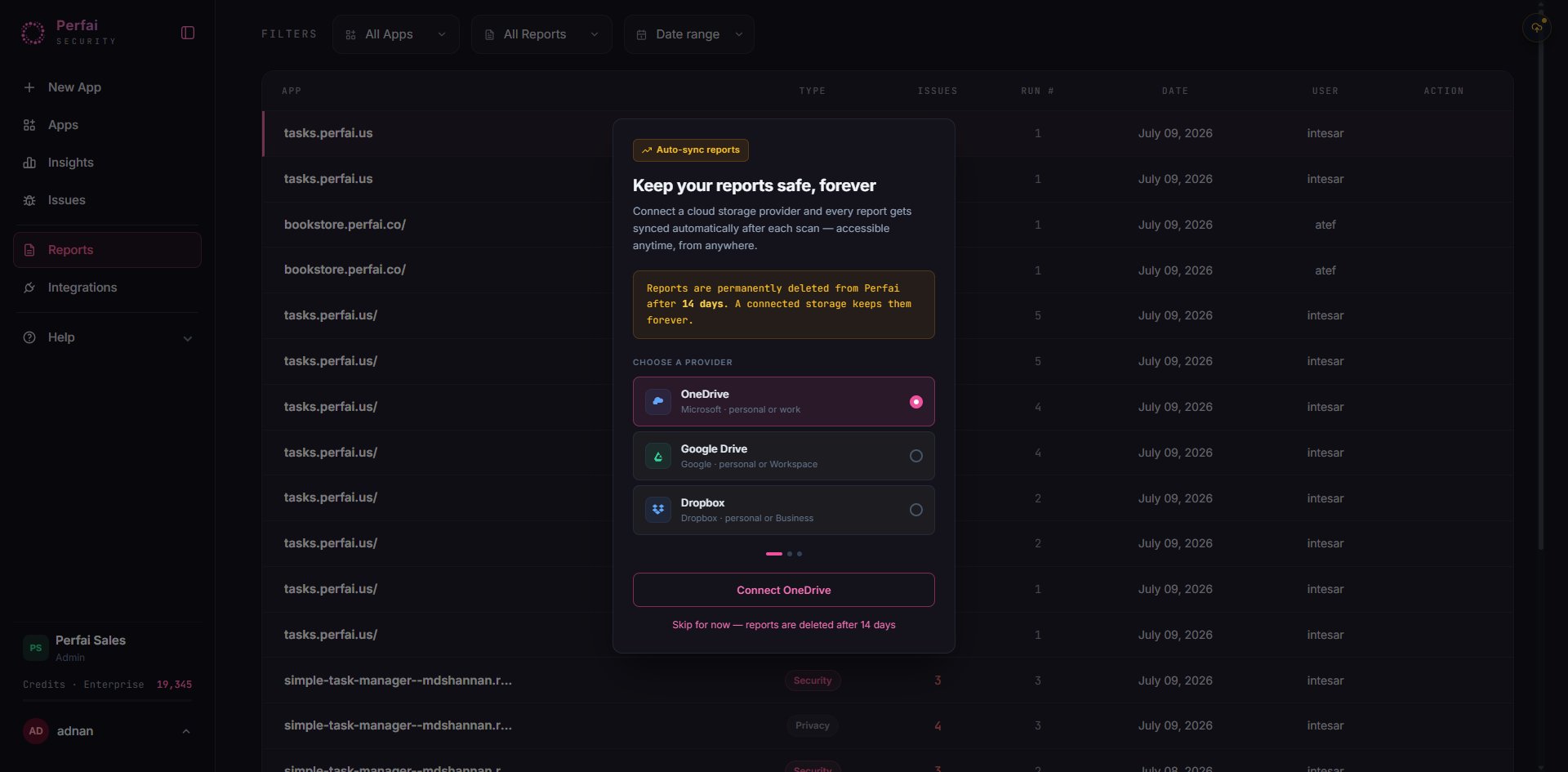 Reports are permanently deleted from Perfai after **14 days**. Connect a cloud storage provider to keep them forever.
The **Auto-sync reports** panel appears when you first visit Reports. It lets you choose a storage provider so every report is automatically synced after each scan — accessible anytime, from anywhere.
**Choose a provider:**
| Provider | Best for |
| ---------------- | ------------------------------------------------------- |
| **OneDrive** | Microsoft 365 organizations — personal or work accounts |
| **Google Drive** | Google Workspace teams — personal or Workspace accounts |
| **Dropbox** | Cross-platform teams — personal or Business accounts |
Click **Connect \[Provider]** to authorize the storage link. Once connected, every new report is deposited automatically — no manual exports needed. If you're not ready, click **Skip for now** but note that reports will be deleted after 14 days without a connected provider.
For compliance workflows, connect storage before your first scan completes. This ensures you have an unbroken audit trail from day one — no risk of reports expiring before an audit request comes in.
***
## Why continuous reports matter
A single penetration test gives you a point-in-time snapshot. Perfai's continuous reports give you a live security log — every release, every change, every new endpoint that appears.
When an auditor asks *"how do you know your app is secure?"*, the answer is: an automatically generated, timestamped report for every scan run, with findings mapped to OWASP standards and a verified remediation trail showing issues found and fixed over time.
That's the difference between a compliance checkbox and an actual security program.
Reports are permanently deleted from Perfai after **14 days**. Connect a cloud storage provider to keep them forever.
The **Auto-sync reports** panel appears when you first visit Reports. It lets you choose a storage provider so every report is automatically synced after each scan — accessible anytime, from anywhere.
**Choose a provider:**
| Provider | Best for |
| ---------------- | ------------------------------------------------------- |
| **OneDrive** | Microsoft 365 organizations — personal or work accounts |
| **Google Drive** | Google Workspace teams — personal or Workspace accounts |
| **Dropbox** | Cross-platform teams — personal or Business accounts |
Click **Connect \[Provider]** to authorize the storage link. Once connected, every new report is deposited automatically — no manual exports needed. If you're not ready, click **Skip for now** but note that reports will be deleted after 14 days without a connected provider.
For compliance workflows, connect storage before your first scan completes. This ensures you have an unbroken audit trail from day one — no risk of reports expiring before an audit request comes in.
***
## Why continuous reports matter
A single penetration test gives you a point-in-time snapshot. Perfai's continuous reports give you a live security log — every release, every change, every new endpoint that appears.
When an auditor asks *"how do you know your app is secure?"*, the answer is: an automatically generated, timestamped report for every scan run, with findings mapped to OWASP standards and a verified remediation trail showing issues found and fixed over time.
That's the difference between a compliance checkbox and an actual security program.