> ## Documentation Index
> Fetch the complete documentation index at: https://docs.perfai.ai/llms.txt
> Use this file to discover all available pages before exploring further.
# Settings
> Configure your Perfai organization — business details, agent behavior, model configuration, and app registration limits.
 ## What is the Settings page?
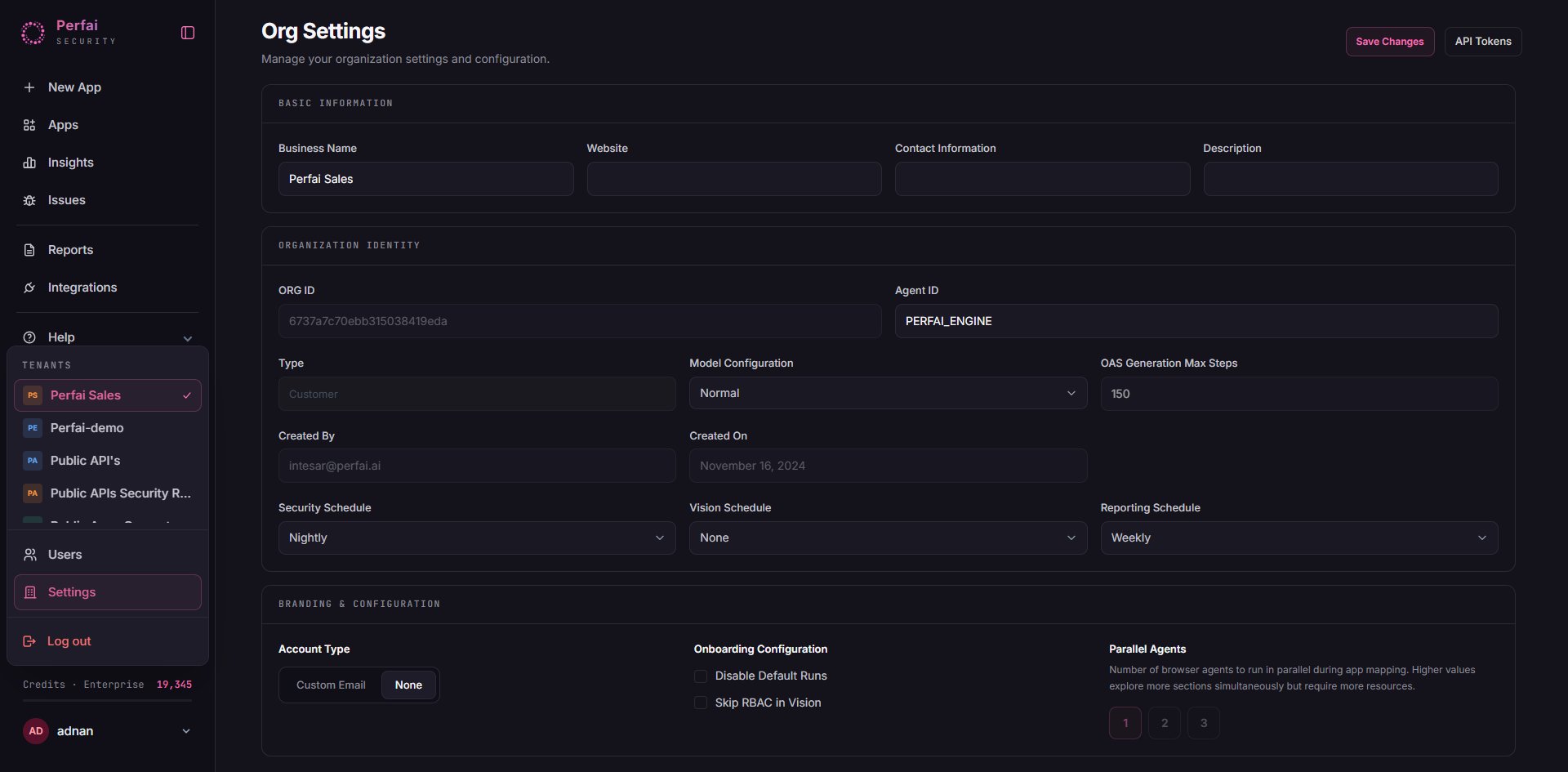
**Settings** is where you configure your Perfai organization. It controls how your org is identified, how the underlying AI agents behave, and what limits apply to your account.
Access Settings from the left sidebar. You'll see the currently active organization highlighted in the sidebar — settings are scoped per organization, so changes here only affect the org you're currently managing.
***
## Organization details
The top section identifies your organization to Perfai and to team members:
| Field | Description |
| ----------------------- | ------------------------------------------------------------------------------------------------------------------ |
| **Business Name** | Your organization's display name (e.g., `Perfai Sales`) |
| **Website** | Your organization's URL (e.g., `https://PerfAI.ai`) |
| **Contact Information** | Primary contact email for the organization |
| **Description** | A short note about this org — useful if you manage multiple orgs (e.g., `Demo tenant`, `Production`, `Client XYZ`) |
Click the gear icon next to the logo area to upload a custom organization logo.
***
## System identifiers
These are read-only values that uniquely identify your organization and its agent configuration:
A unique identifier for your organization (e.g., `6737a7c70ebb315038419eda`). Used in API calls and support requests to reference your specific org.
The identifier for the AI engine powering your scans (e.g., `PERFAI_ENGINE`). This tells Perfai which agent version and configuration is assigned to your organization.
***
## Agent configuration
The agent deployment type for your organization. Controls which scanning capabilities and agent features are enabled. Contact Perfai support to change your agent type.
The AI model tier powering your agents. **Advanced** (the default) uses Perfai's highest-capability models for maximum accuracy in workflow discovery, role inference, and vulnerability detection.
***
## Scan limits
Controls how many steps the Vision Agent takes when generating the OpenAPI spec for your app. Default is **150**. Higher values mean more thorough mapping but longer scan times. Useful for apps with deep navigation hierarchies or many nested workflows.
The maximum number of apps your organization can register. Current limit is shown below the field (e.g., `Current limit: 1000`). Click **Update** to request a limit change. Must be between 1 and the maximum allowed by your plan.
The OAS Generation Max Steps setting directly affects scan depth. If the Vision Agent is missing workflows in a complex app, increasing this value is the first thing to try. Start with increments of 50 and re-run the Vision Agent to see if additional workflows are discovered.
***
## Managing multiple organizations
The **Teams** panel in the left sidebar shows every organization your account belongs to. If you're managing multiple orgs — for example, separate environments for different clients or product lines — each has its own Settings page.
From Settings you can also:
* Click **Agents** to view and manage the AI agents assigned to this organization
* Click **Create Organization** to spin up a new org under your account — useful for isolating different clients, environments, or product lines
***
## Related pages
Manage who has access to this organization.
Track scan consumption, API usage, and plan utilization.
Manage your subscription, payment method, and plan limits.
## What is the Settings page?
**Settings** is where you configure your Perfai organization. It controls how your org is identified, how the underlying AI agents behave, and what limits apply to your account.
Access Settings from the left sidebar. You'll see the currently active organization highlighted in the sidebar — settings are scoped per organization, so changes here only affect the org you're currently managing.
***
## Organization details
The top section identifies your organization to Perfai and to team members:
| Field | Description |
| ----------------------- | ------------------------------------------------------------------------------------------------------------------ |
| **Business Name** | Your organization's display name (e.g., `Perfai Sales`) |
| **Website** | Your organization's URL (e.g., `https://PerfAI.ai`) |
| **Contact Information** | Primary contact email for the organization |
| **Description** | A short note about this org — useful if you manage multiple orgs (e.g., `Demo tenant`, `Production`, `Client XYZ`) |
Click the gear icon next to the logo area to upload a custom organization logo.
***
## System identifiers
These are read-only values that uniquely identify your organization and its agent configuration:
A unique identifier for your organization (e.g., `6737a7c70ebb315038419eda`). Used in API calls and support requests to reference your specific org.
The identifier for the AI engine powering your scans (e.g., `PERFAI_ENGINE`). This tells Perfai which agent version and configuration is assigned to your organization.
***
## Agent configuration
The agent deployment type for your organization. Controls which scanning capabilities and agent features are enabled. Contact Perfai support to change your agent type.
The AI model tier powering your agents. **Advanced** (the default) uses Perfai's highest-capability models for maximum accuracy in workflow discovery, role inference, and vulnerability detection.
***
## Scan limits
Controls how many steps the Vision Agent takes when generating the OpenAPI spec for your app. Default is **150**. Higher values mean more thorough mapping but longer scan times. Useful for apps with deep navigation hierarchies or many nested workflows.
The maximum number of apps your organization can register. Current limit is shown below the field (e.g., `Current limit: 1000`). Click **Update** to request a limit change. Must be between 1 and the maximum allowed by your plan.
The OAS Generation Max Steps setting directly affects scan depth. If the Vision Agent is missing workflows in a complex app, increasing this value is the first thing to try. Start with increments of 50 and re-run the Vision Agent to see if additional workflows are discovered.
***
## Managing multiple organizations
The **Teams** panel in the left sidebar shows every organization your account belongs to. If you're managing multiple orgs — for example, separate environments for different clients or product lines — each has its own Settings page.
From Settings you can also:
* Click **Agents** to view and manage the AI agents assigned to this organization
* Click **Create Organization** to spin up a new org under your account — useful for isolating different clients, environments, or product lines
***
## Related pages
Manage who has access to this organization.
Track scan consumption, API usage, and plan utilization.
Manage your subscription, payment method, and plan limits.