> ## Documentation Index
> Fetch the complete documentation index at: https://docs.perfai.ai/llms.txt
> Use this file to discover all available pages before exploring further.
# Bring Your Own Accounts
> Already have two test accounts? Select Manual at the first prompt, enter your credentials, and Perfai starts mapping and testing immediately.
## Overview
If you've already provisioned test accounts in your staging environment, you don't need Perfai to create new ones. At the very first step of onboarding, the Vision Agent asks how you'd like accounts set up. Choose **Manual**, enter two sets of credentials, and the agent moves straight to login validation and app mapping.
This is the fastest path to your first security scan when accounts already exist.
***
## Full walkthrough
Go to **New App**, paste your app's URL into the input field, and hit the arrow button.
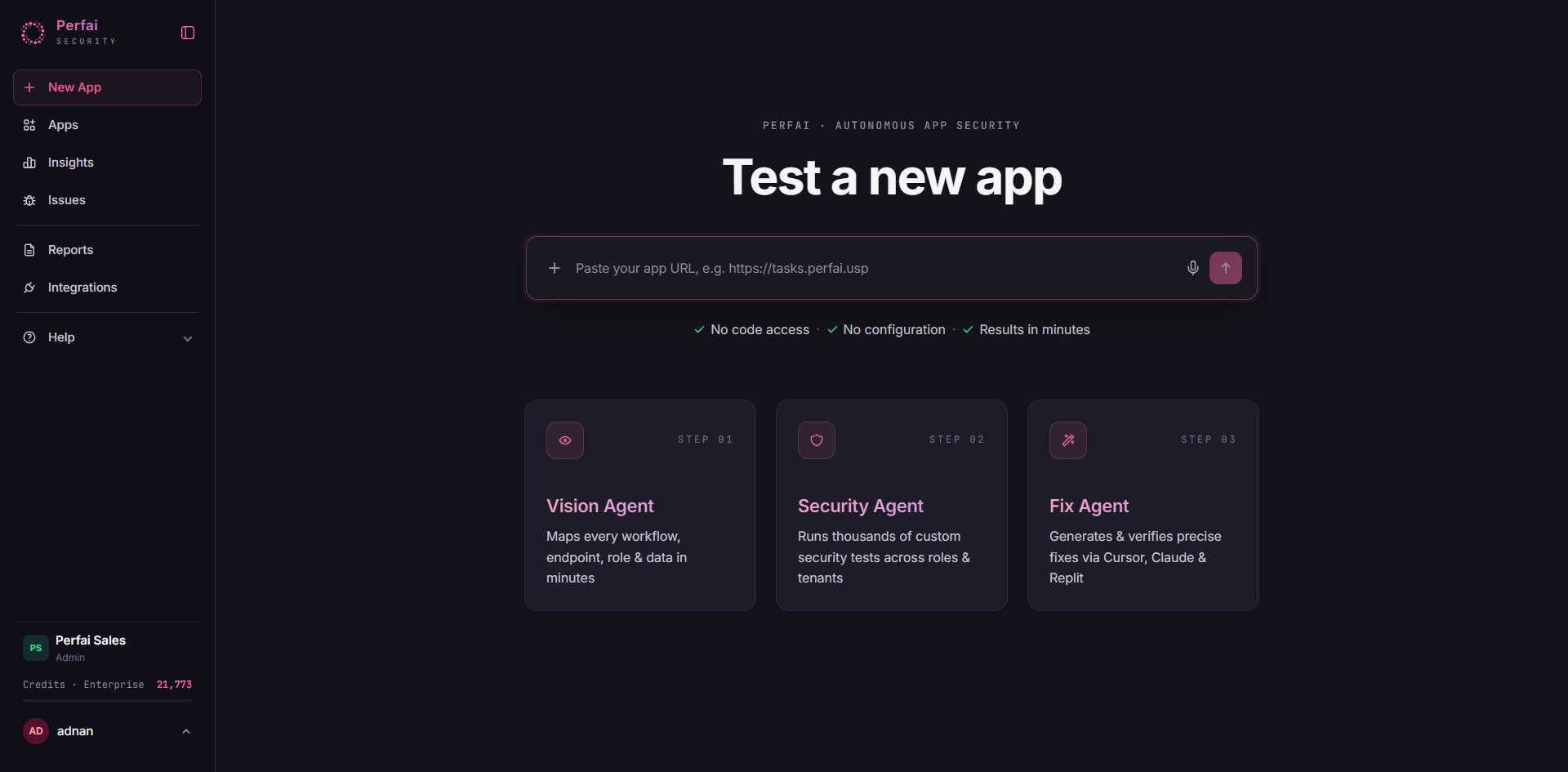 Three agents run in sequence: the **Vision Agent** maps your app, the **Security Agent** runs permission tests, and the **Fix Agent** generates verified fixes for every finding.
A **New app setup** modal appears listing the four automated tasks. Click **Continue** — nothing to configure here.
Three agents run in sequence: the **Vision Agent** maps your app, the **Security Agent** runs permission tests, and the **Fix Agent** generates verified fixes for every finding.
A **New app setup** modal appears listing the four automated tasks. Click **Continue** — nothing to configure here.
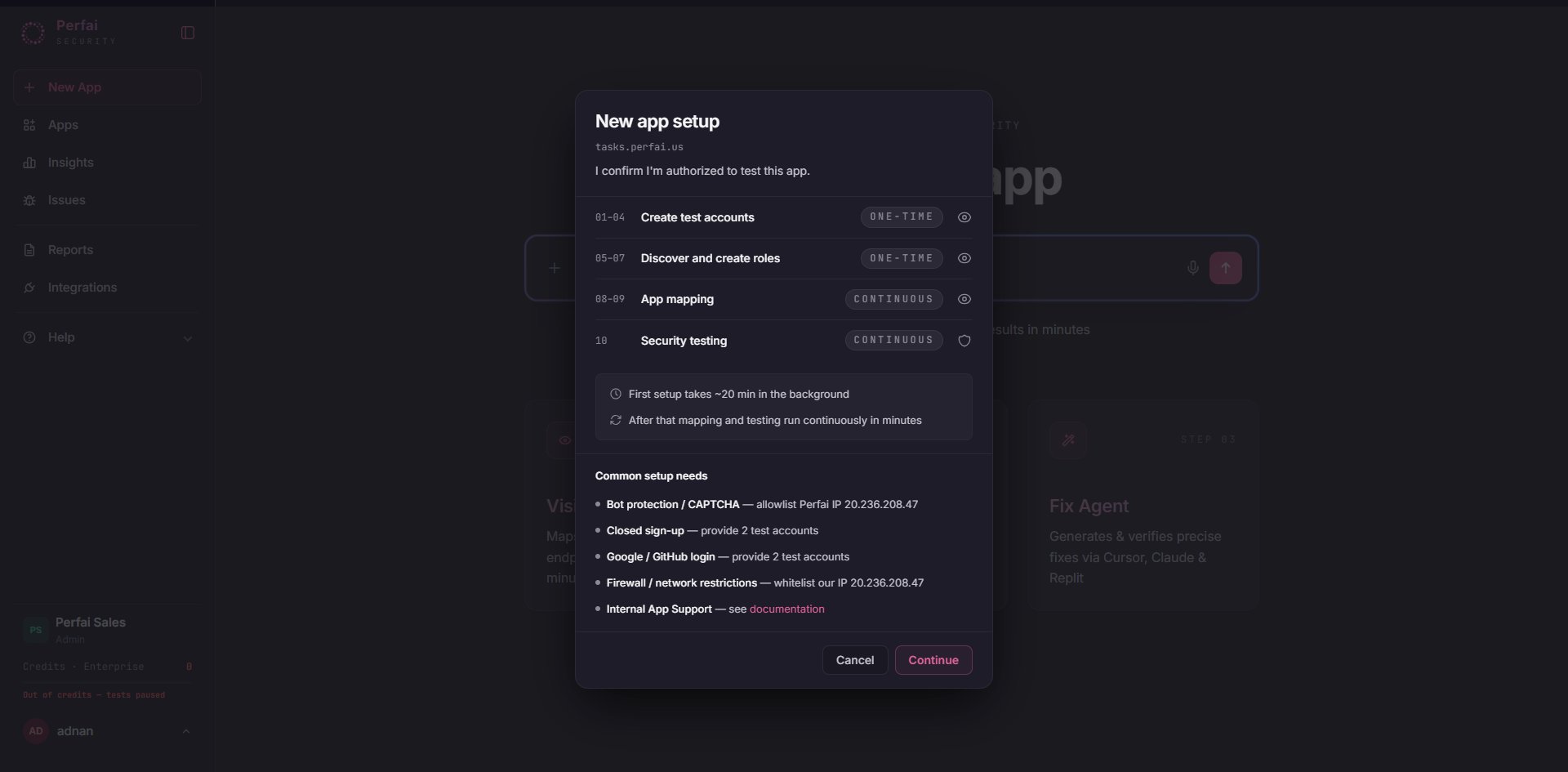 | # | Task | Type |
| - | ----------------------- | ---------- |
| 1 | Create Test Accounts | One-time |
| 2 | Discover & Create Roles | One-time |
| 3 | App Mapping | Continuous |
| 4 | Security Testing | Continuous |
The Vision Agent launches immediately and starts Task #1: Create Test Accounts.
The first thing the Vision Agent does is ask how you want test accounts handled. The cloud browser shows **Vision agent on standby** while it waits for your answer.
| # | Task | Type |
| - | ----------------------- | ---------- |
| 1 | Create Test Accounts | One-time |
| 2 | Discover & Create Roles | One-time |
| 3 | App Mapping | Continuous |
| 4 | Security Testing | Continuous |
The Vision Agent launches immediately and starts Task #1: Create Test Accounts.
The first thing the Vision Agent does is ask how you want test accounts handled. The cloud browser shows **Vision agent on standby** while it waits for your answer.
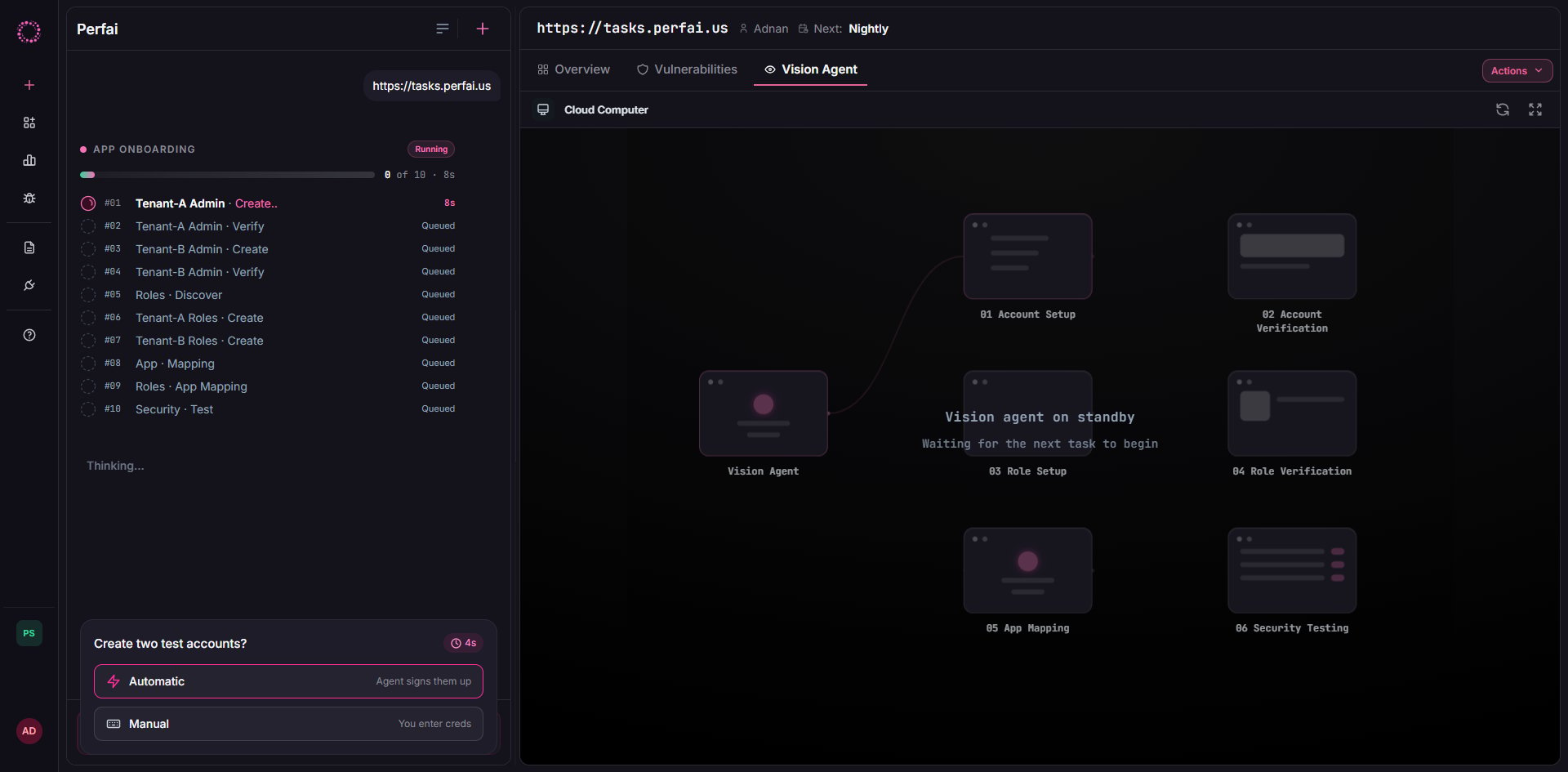 | Option | When to use |
| ---------------------------------------- | -------------------------------------------------------- |
| **Yes** — auto sign-up using the app URL | Let Perfai create brand-new accounts automatically |
| **Manual — I'll provide email/password** | You already have accounts — choose this |
| **Skip — I'll add accounts later** | Defer account setup; testing will pause until you return |
Click **Manual — I'll provide email/password**.
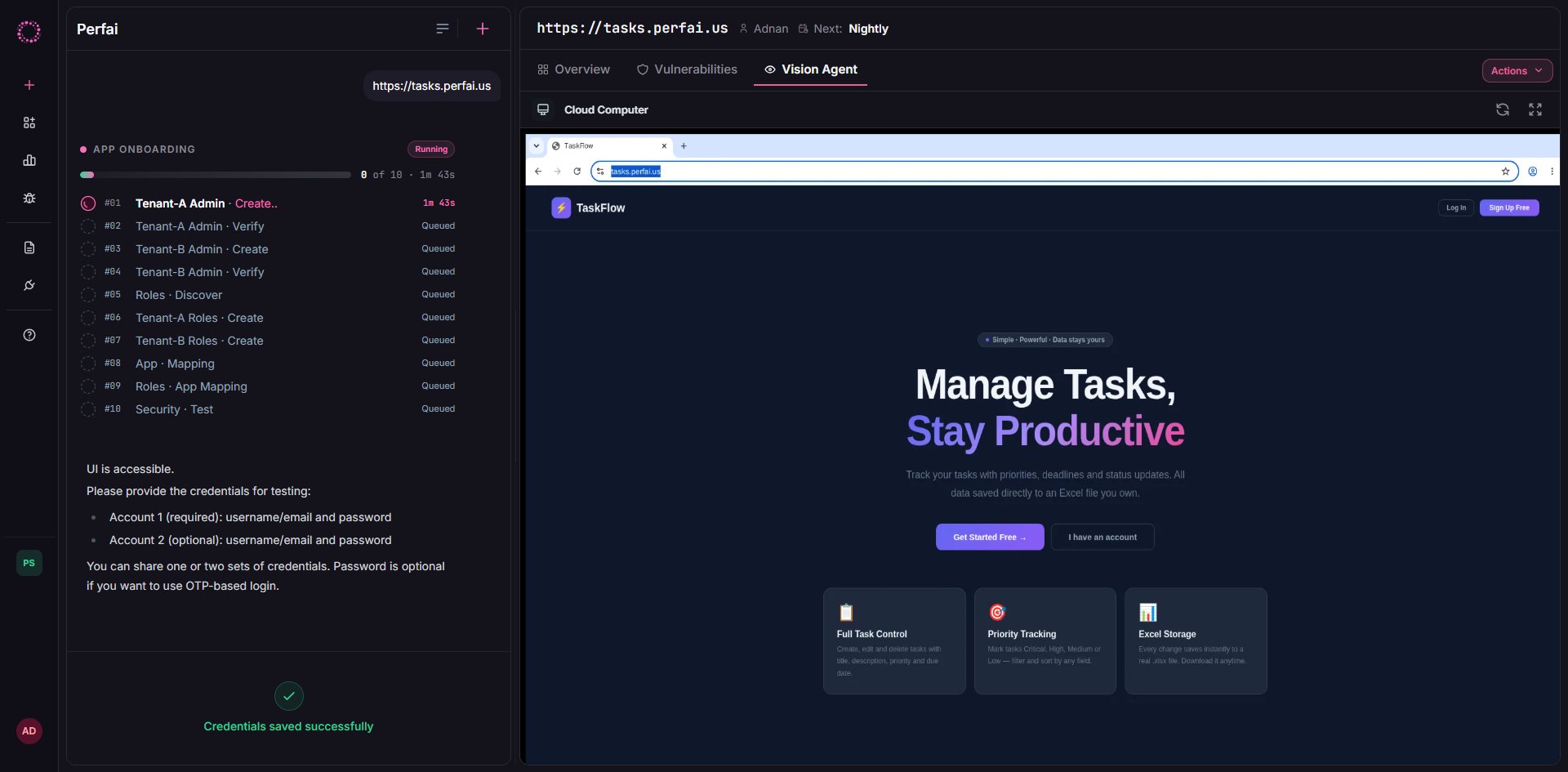
The credential form appears with two sections. Fill in both sets of credentials and click **Save Credentials**.
| Option | When to use |
| ---------------------------------------- | -------------------------------------------------------- |
| **Yes** — auto sign-up using the app URL | Let Perfai create brand-new accounts automatically |
| **Manual — I'll provide email/password** | You already have accounts — choose this |
| **Skip — I'll add accounts later** | Defer account setup; testing will pause until you return |
Click **Manual — I'll provide email/password**.
The credential form appears with two sections. Fill in both sets of credentials and click **Save Credentials**.
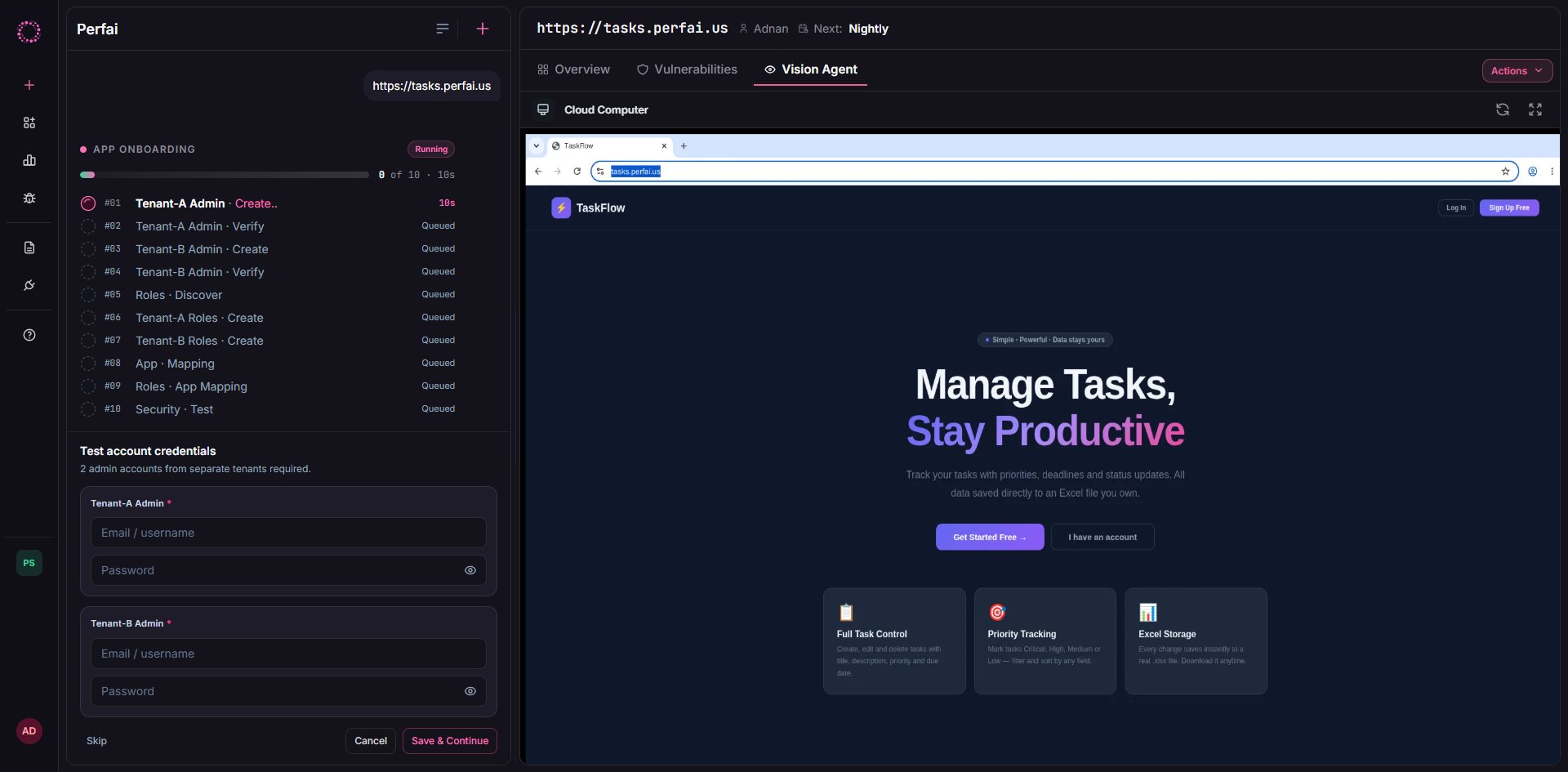 | Field | What to enter |
| ------------------------------------ | ------------------------------------------------------------------ |
| **Test Account 1** — Admin, Tenant A | Email/username and password for your first test admin |
| **Test Account 2** — Admin, Tenant B | Email/username and password for an admin in a **different** tenant |
Account 2 is optional if you only have one tenant, but cross-tenant security tests (BOLA, privilege escalation) won't run without it. You'll still get full single-tenant coverage.
**OTP-based login?** Leave the password field blank. Perfai handles OTP flows automatically during login validation.
A green **Credentials saved successfully** confirmation appears along with a summary of what was provided.
| Field | What to enter |
| ------------------------------------ | ------------------------------------------------------------------ |
| **Test Account 1** — Admin, Tenant A | Email/username and password for your first test admin |
| **Test Account 2** — Admin, Tenant B | Email/username and password for an admin in a **different** tenant |
Account 2 is optional if you only have one tenant, but cross-tenant security tests (BOLA, privilege escalation) won't run without it. You'll still get full single-tenant coverage.
**OTP-based login?** Leave the password field blank. Perfai handles OTP flows automatically during login validation.
A green **Credentials saved successfully** confirmation appears along with a summary of what was provided.
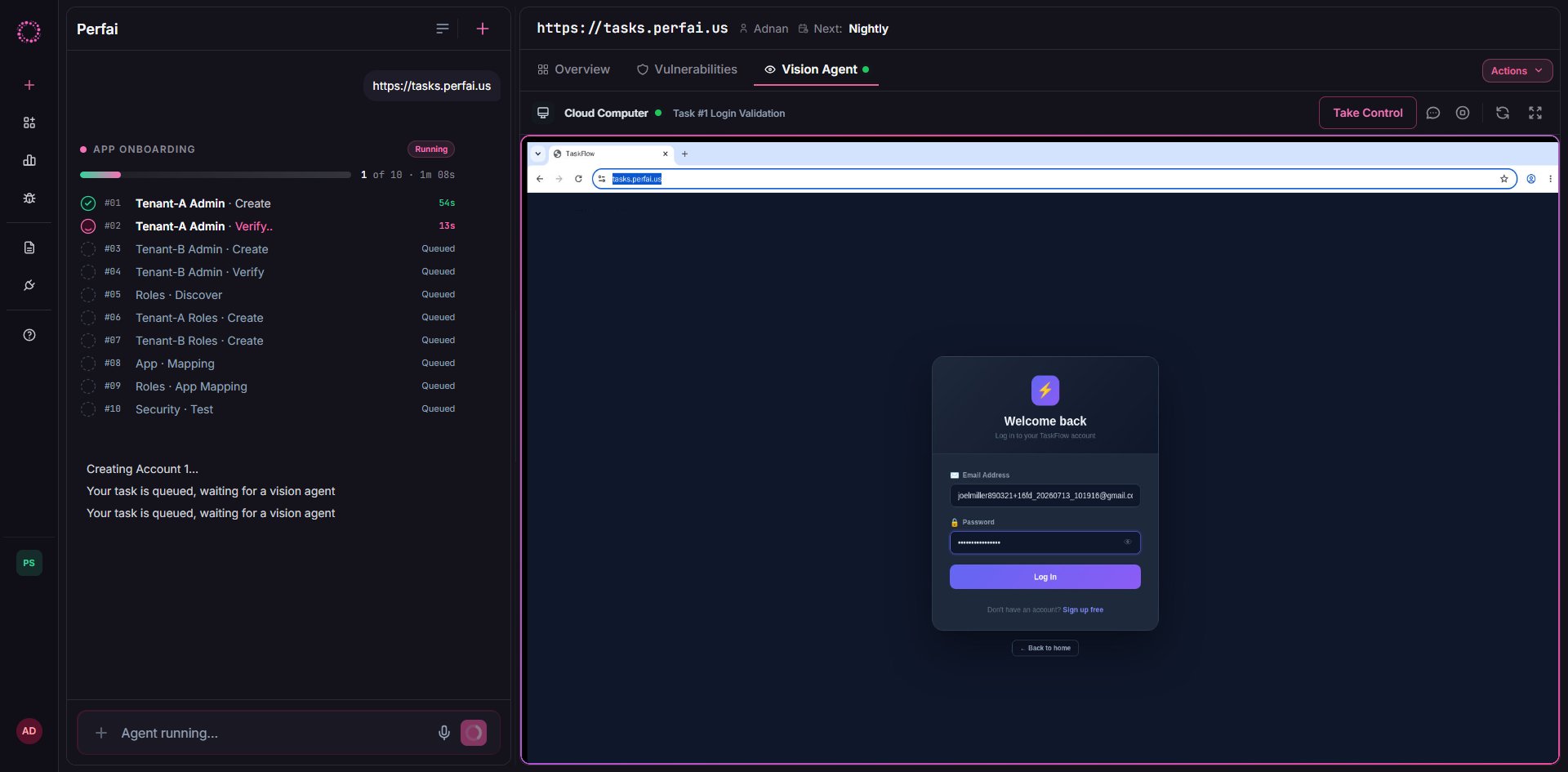
 The Vision Agent immediately uses the credentials to log in as each account and verify access in a live cloud browser session.
 Once both logins are confirmed, **App Mapping** starts automatically. The agent navigates your entire app, recording every workflow, API endpoint, and data type it encounters.
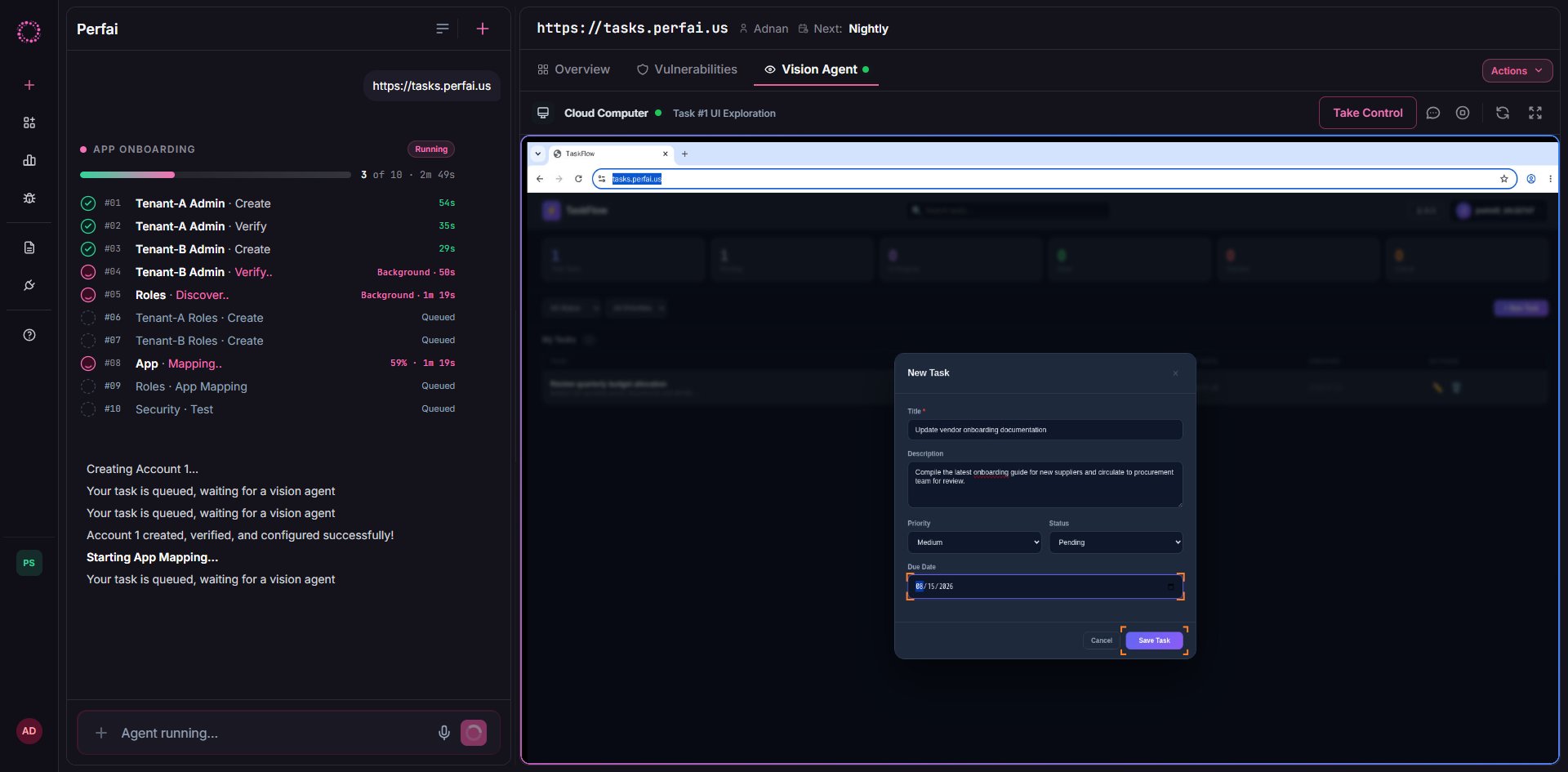 The left panel logs every step:
```
Manual - I'll provide email/password
Credentials saved successfully.
Verifying Login: Account 1...
App mapping has started. This process may take up to 10 minutes.
Step 3: Attack Surface Mapping
```
When mapping completes, the Security Agent begins running permission tests automatically. No trigger needed.
***
## What happens from here
Once accounts are validated and the app is mapped, Perfai runs on its continuous schedule. You won't be prompted for credentials again — they're stored encrypted and reused on every subsequent scan.
| Task | Frequency |
| ---------------- | ----------------------------------------- |
| App mapping | Continuous — re-maps as your app changes |
| Security testing | Continuous — re-tests the updated surface |
| Full scan | Nightly by default |
***
## Frequently asked questions
They should have the broadest permissions available so the Vision Agent can map your full attack surface. Restricted roles cause the agent to miss endpoints and produce incomplete coverage.
You can run with a single account. Perfai will still map your app and run same-tenant permission tests. However, cross-tenant BOLA tests — the highest-severity vulnerability class — require two accounts from separate tenants.
Yes. Leave the password field blank and Perfai will handle OTP-based login automatically during the validation phase.
Yes. Go to your app dashboard → **Tasks** → **Create Test Accounts** to re-open the credential form and update either account at any time.
The left panel logs every step:
```
Manual - I'll provide email/password
Credentials saved successfully.
Verifying Login: Account 1...
App mapping has started. This process may take up to 10 minutes.
Step 3: Attack Surface Mapping
```
When mapping completes, the Security Agent begins running permission tests automatically. No trigger needed.
***
## What happens from here
Once accounts are validated and the app is mapped, Perfai runs on its continuous schedule. You won't be prompted for credentials again — they're stored encrypted and reused on every subsequent scan.
| Task | Frequency |
| ---------------- | ----------------------------------------- |
| App mapping | Continuous — re-maps as your app changes |
| Security testing | Continuous — re-tests the updated surface |
| Full scan | Nightly by default |
***
## Frequently asked questions
They should have the broadest permissions available so the Vision Agent can map your full attack surface. Restricted roles cause the agent to miss endpoints and produce incomplete coverage.
You can run with a single account. Perfai will still map your app and run same-tenant permission tests. However, cross-tenant BOLA tests — the highest-severity vulnerability class — require two accounts from separate tenants.
Yes. Leave the password field blank and Perfai will handle OTP-based login automatically during the validation phase.
Yes. Go to your app dashboard → **Tasks** → **Create Test Accounts** to re-open the credential form and update either account at any time.