> ## Documentation Index
> Fetch the complete documentation index at: https://docs.perfai.ai/llms.txt
> Use this file to discover all available pages before exploring further.
# Managing an App
> Run agents on demand, adjust scan schedules, configure notifications, and delete an app — all from the Actions menu or by typing directly in the agent.
## Overview
Once an app is registered, Perfai gives you full control over how and when it gets tested. You can trigger agents immediately, tune how often scans run, set up report delivery, and manage or remove the app — all without leaving the dashboard.
There are two ways to trigger any action:
* **Actions menu** — click **Actions** in the top-right corner of any app dashboard to see the full list
* **Agent chat** — type a command directly in the agent input and hit send
***
## Actions menu
Click **Actions** from any app's dashboard to access every available operation.
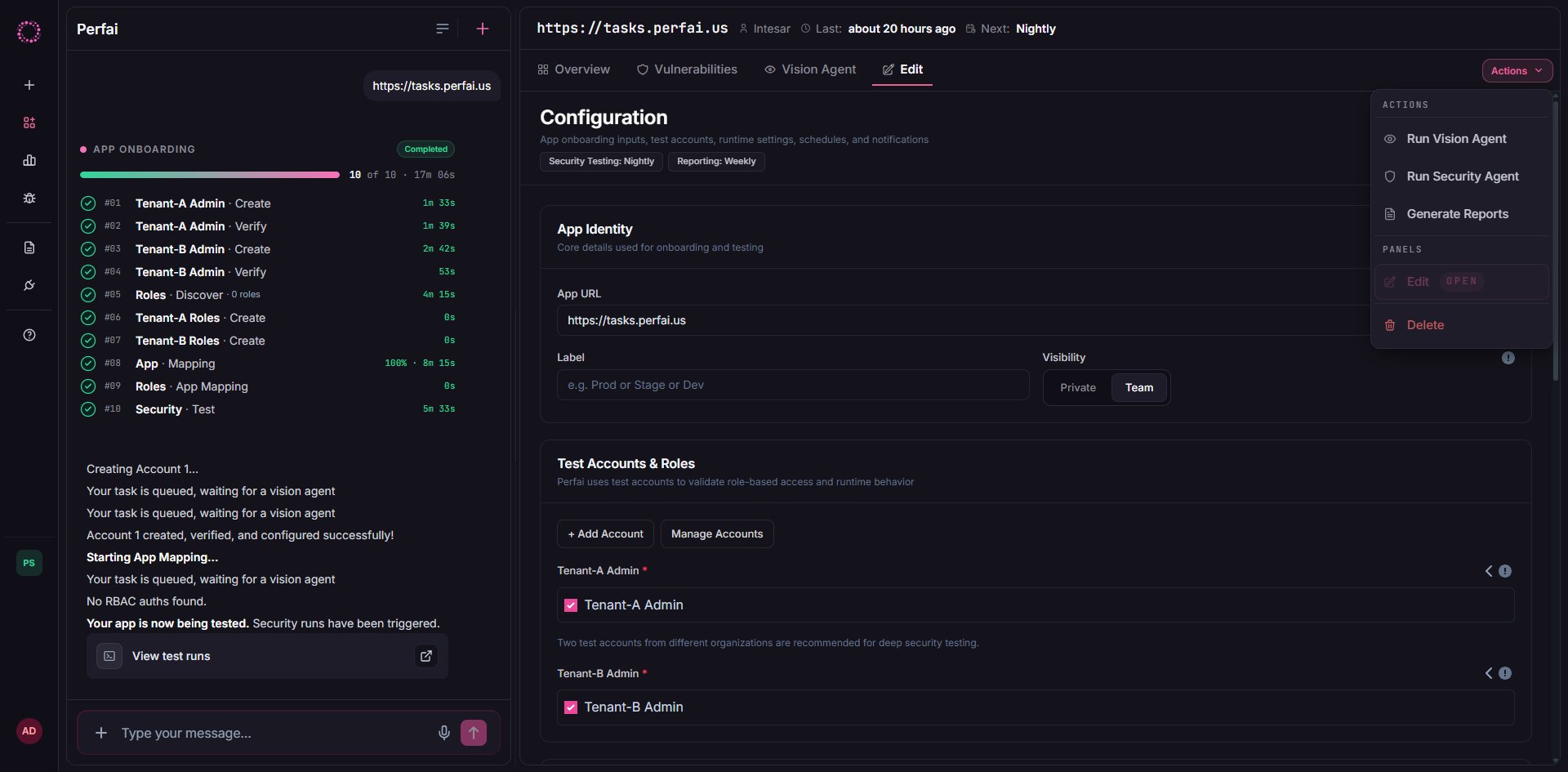 | Action | What it does |
| -------------------- | -------------------------------------------------------------------------------------------------------------------- |
| **Run Vision** | Immediately starts the Vision Agent — re-maps your entire application, discovers new endpoints, roles, and workflows |
| **Run Security** | Immediately triggers a full security test run against the current attack surface map |
| **Generate Reports** | Produces a security report from the latest scan results |
| **View Reports** | Opens the reports list for this app |
| **Edit** | Opens the Configuration panel to update schedules, notifications, and app settings |
| **Delete** | Permanently removes the app and all associated data |
### Triggering actions via agent chat
You can also type any of these commands directly in the agent input at the bottom of the left panel:
| Type this | What happens |
| ------------------ | ------------------------------------------ |
| `run vision` | Starts the Vision Agent immediately |
| `run security` | Starts a security test run immediately |
| `generate reports` | Generates a report from the latest results |
The agent confirms the action and shows live progress inline — no need to navigate to the Vision tab.
***
## Configuration panel
Click **Actions → Edit** to open the **Configuration** panel. This is where you control all scheduling and notification settings for the app.
| Action | What it does |
| -------------------- | -------------------------------------------------------------------------------------------------------------------- |
| **Run Vision** | Immediately starts the Vision Agent — re-maps your entire application, discovers new endpoints, roles, and workflows |
| **Run Security** | Immediately triggers a full security test run against the current attack surface map |
| **Generate Reports** | Produces a security report from the latest scan results |
| **View Reports** | Opens the reports list for this app |
| **Edit** | Opens the Configuration panel to update schedules, notifications, and app settings |
| **Delete** | Permanently removes the app and all associated data |
### Triggering actions via agent chat
You can also type any of these commands directly in the agent input at the bottom of the left panel:
| Type this | What happens |
| ------------------ | ------------------------------------------ |
| `run vision` | Starts the Vision Agent immediately |
| `run security` | Starts a security test run immediately |
| `generate reports` | Generates a report from the latest results |
The agent confirms the action and shows live progress inline — no need to navigate to the Vision tab.
***
## Configuration panel
Click **Actions → Edit** to open the **Configuration** panel. This is where you control all scheduling and notification settings for the app.
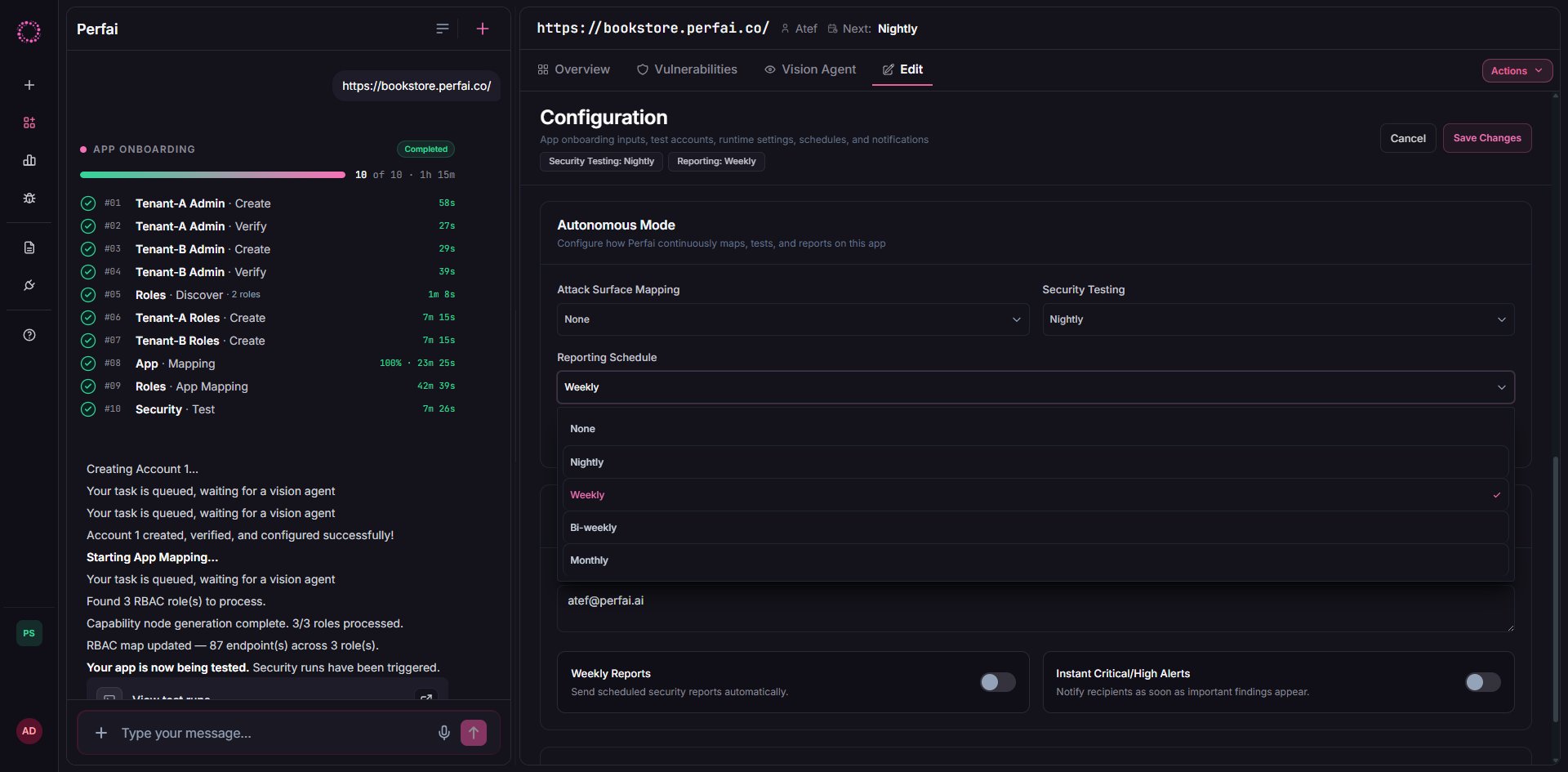 ### Autonomous Mode schedules
The **Autonomous Mode** section controls how often each agent runs automatically.
| Setting | Options | Default | What it controls |
| -------------------------- | ----------------------------------------- | ------- | --------------------------------------------- |
| **Attack Surface Mapping** | None, Nightly, Weekly, Bi-weekly, Monthly | Weekly | How often the Vision Agent re-maps your app |
| **Security Testing** | None, Nightly, Weekly, Bi-weekly, Monthly | Nightly | How often the Security Agent runs tests |
| **Reporting Schedule** | None, Nightly, Weekly, Bi-weekly, Monthly | Weekly | How often a report is generated and delivered |
The current schedule is shown as tags at the top of the panel (e.g., **Security Testing: Nightly · Reporting: Weekly**). Changes take effect on the next scheduled window after clicking **Save Changes**.
For active development, set **Security Testing** to **Nightly** and **Attack Surface Mapping** to **Weekly**. For stable production apps, **Weekly** for both is usually sufficient.
### Critical/High alerts
The **Critical/High Alerts** toggle sends an instant notification whenever a new critical or high-severity finding is reported — regardless of your reporting schedule. Recommended for all production apps.
### Notifications
The **Notifications** section controls who receives reports and alerts.
| Field | What to enter |
| -------------------------------- | --------------------------------------------------------------------------------- |
| **Email Recipients** | One or more email addresses that receive scheduled reports and critical alerts |
| **Weekly Reports** | Toggle on to send a full security report every week automatically |
| **Instant Critical/High Alerts** | Toggle on to notify recipients the moment a critical or high finding is confirmed |
### Advanced Options
The **Advanced Options** section at the bottom of the Configuration panel exposes enterprise-specific settings including environment-level overrides, API base URL, app label, and visibility (Private / Team).
Click **Save Changes** to apply any updates, or **Cancel** to discard.
***
## Deleting an app
To permanently remove an app and all its data, click **Actions → Delete**.
### Autonomous Mode schedules
The **Autonomous Mode** section controls how often each agent runs automatically.
| Setting | Options | Default | What it controls |
| -------------------------- | ----------------------------------------- | ------- | --------------------------------------------- |
| **Attack Surface Mapping** | None, Nightly, Weekly, Bi-weekly, Monthly | Weekly | How often the Vision Agent re-maps your app |
| **Security Testing** | None, Nightly, Weekly, Bi-weekly, Monthly | Nightly | How often the Security Agent runs tests |
| **Reporting Schedule** | None, Nightly, Weekly, Bi-weekly, Monthly | Weekly | How often a report is generated and delivered |
The current schedule is shown as tags at the top of the panel (e.g., **Security Testing: Nightly · Reporting: Weekly**). Changes take effect on the next scheduled window after clicking **Save Changes**.
For active development, set **Security Testing** to **Nightly** and **Attack Surface Mapping** to **Weekly**. For stable production apps, **Weekly** for both is usually sufficient.
### Critical/High alerts
The **Critical/High Alerts** toggle sends an instant notification whenever a new critical or high-severity finding is reported — regardless of your reporting schedule. Recommended for all production apps.
### Notifications
The **Notifications** section controls who receives reports and alerts.
| Field | What to enter |
| -------------------------------- | --------------------------------------------------------------------------------- |
| **Email Recipients** | One or more email addresses that receive scheduled reports and critical alerts |
| **Weekly Reports** | Toggle on to send a full security report every week automatically |
| **Instant Critical/High Alerts** | Toggle on to notify recipients the moment a critical or high finding is confirmed |
### Advanced Options
The **Advanced Options** section at the bottom of the Configuration panel exposes enterprise-specific settings including environment-level overrides, API base URL, app label, and visibility (Private / Team).
Click **Save Changes** to apply any updates, or **Cancel** to discard.
***
## Deleting an app
To permanently remove an app and all its data, click **Actions → Delete**.
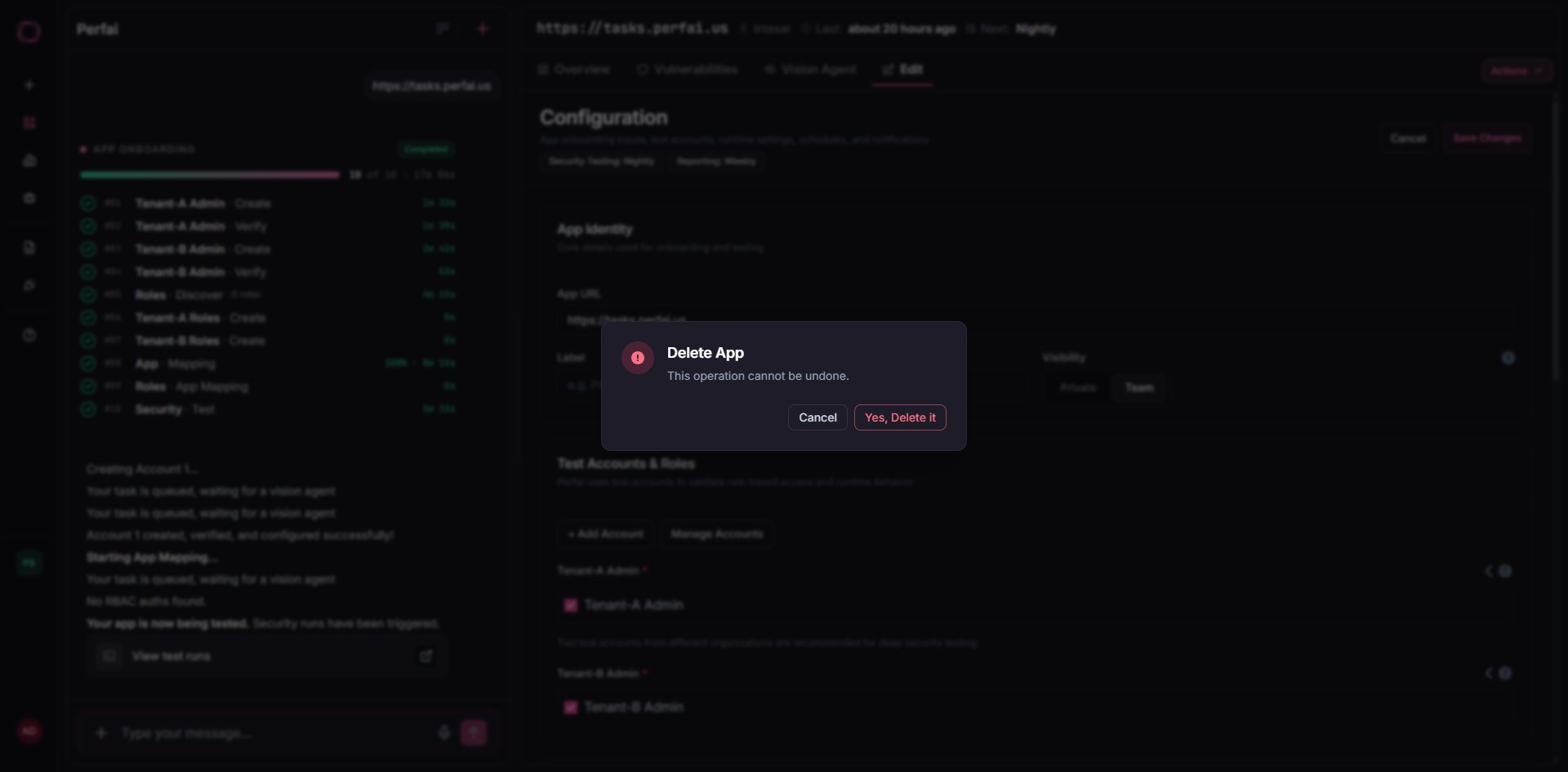 A confirmation dialog appears:
> **Delete App**
> This operation cannot be undone.
Click **Yes, Delete it** to confirm, or **Cancel** to go back. Deletion removes the app record, all scan history, findings, and stored credentials — this cannot be reversed.
Deleting an app is permanent. If you only want to pause testing, set **Attack Surface Mapping** and **Security Testing** schedules to **None** in the Configuration panel instead.
***
## Quick reference
| Goal | How |
| ----------------------------------- | ------------------------------------------------------------- |
| Re-map the app right now | Actions → **Run Vision**, or type `run vision` |
| Run a security test right now | Actions → **Run Security**, or type `run security` |
| Get a report right now | Actions → **Generate Reports**, or type `generate reports` |
| Change how often the app is mapped | Actions → **Edit** → Autonomous Mode → Attack Surface Mapping |
| Change how often security tests run | Actions → **Edit** → Autonomous Mode → Security Testing |
| Change report delivery frequency | Actions → **Edit** → Autonomous Mode → Reporting Schedule |
| Add an email recipient | Actions → **Edit** → Notifications → Email Recipients |
| Pause all automated testing | Actions → **Edit** → set all schedules to **None** |
| Remove the app permanently | Actions → **Delete** → Yes, Delete it |
A confirmation dialog appears:
> **Delete App**
> This operation cannot be undone.
Click **Yes, Delete it** to confirm, or **Cancel** to go back. Deletion removes the app record, all scan history, findings, and stored credentials — this cannot be reversed.
Deleting an app is permanent. If you only want to pause testing, set **Attack Surface Mapping** and **Security Testing** schedules to **None** in the Configuration panel instead.
***
## Quick reference
| Goal | How |
| ----------------------------------- | ------------------------------------------------------------- |
| Re-map the app right now | Actions → **Run Vision**, or type `run vision` |
| Run a security test right now | Actions → **Run Security**, or type `run security` |
| Get a report right now | Actions → **Generate Reports**, or type `generate reports` |
| Change how often the app is mapped | Actions → **Edit** → Autonomous Mode → Attack Surface Mapping |
| Change how often security tests run | Actions → **Edit** → Autonomous Mode → Security Testing |
| Change report delivery frequency | Actions → **Edit** → Autonomous Mode → Reporting Schedule |
| Add an email recipient | Actions → **Edit** → Notifications → Email Recipients |
| Pause all automated testing | Actions → **Edit** → set all schedules to **None** |
| Remove the app permanently | Actions → **Delete** → Yes, Delete it |