> ## Documentation Index
> Fetch the complete documentation index at: https://docs.perfai.ai/llms.txt
> Use this file to discover all available pages before exploring further.
# Apps Without Public Sign-Up
> Perfai detects when it can't auto-create accounts and prompts you to supply two admin credentials — one per tenant — so security testing can proceed without any manual setup.
## Overview
Many enterprise and B2B apps don't have a public registration page. Accounts are provisioned by an admin, delivered through an invite link, or gated behind SSO. When Perfai can't auto-create test accounts it stops and asks you to provide credentials directly — then picks up exactly where it left off.
This page walks through the complete flow from URL submission to app mapping.
***
## Full walkthrough
Go to **New App**, paste your app's URL into the input field, and hit the arrow button. No configuration is needed.
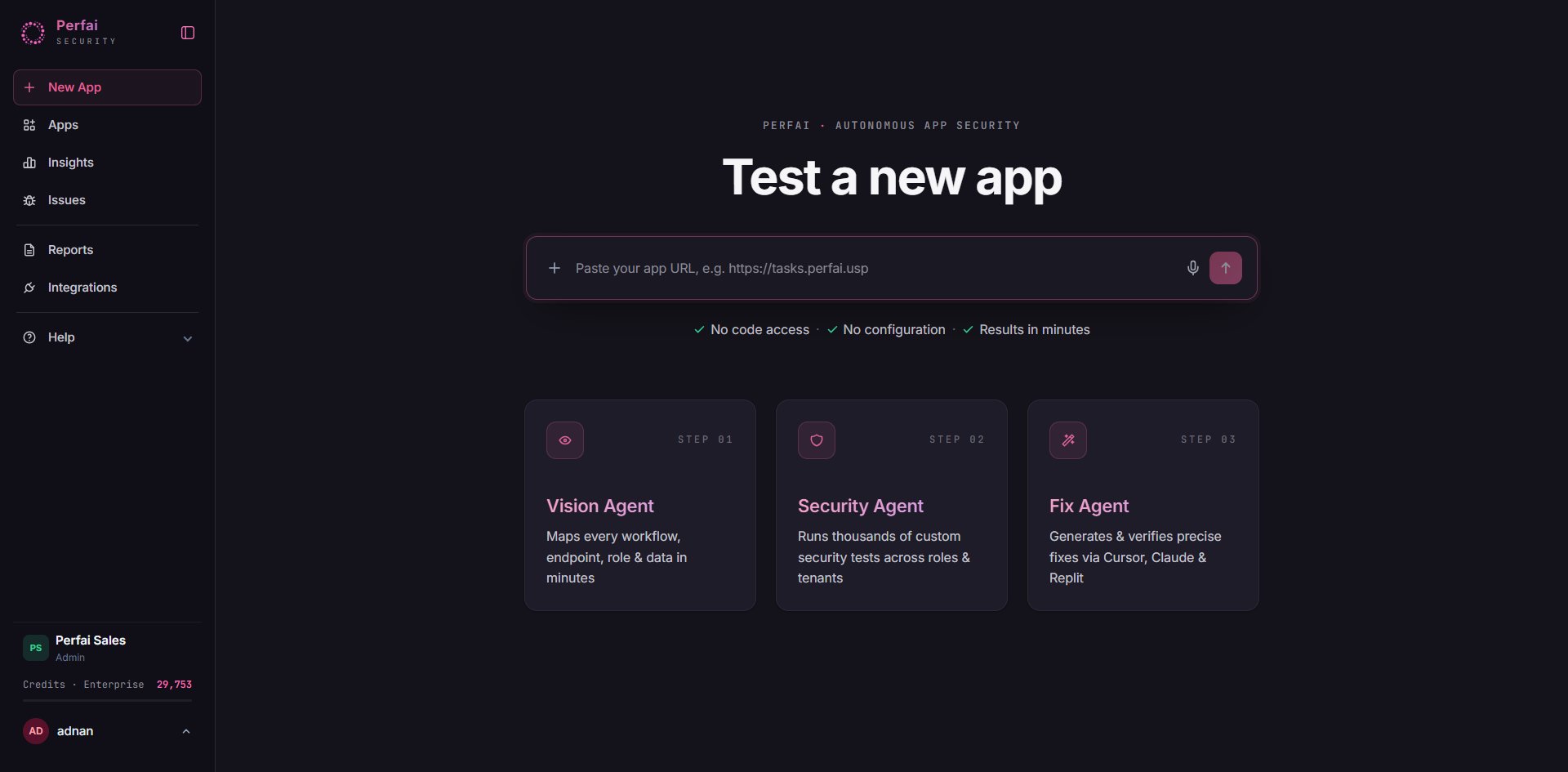 Perfai works purely from the URL — no browser plugin, no code access, no pre-configuration required.
A **New app setup** modal appears listing the four tasks that will run automatically. Click **Continue**.
Perfai works purely from the URL — no browser plugin, no code access, no pre-configuration required.
A **New app setup** modal appears listing the four tasks that will run automatically. Click **Continue**.
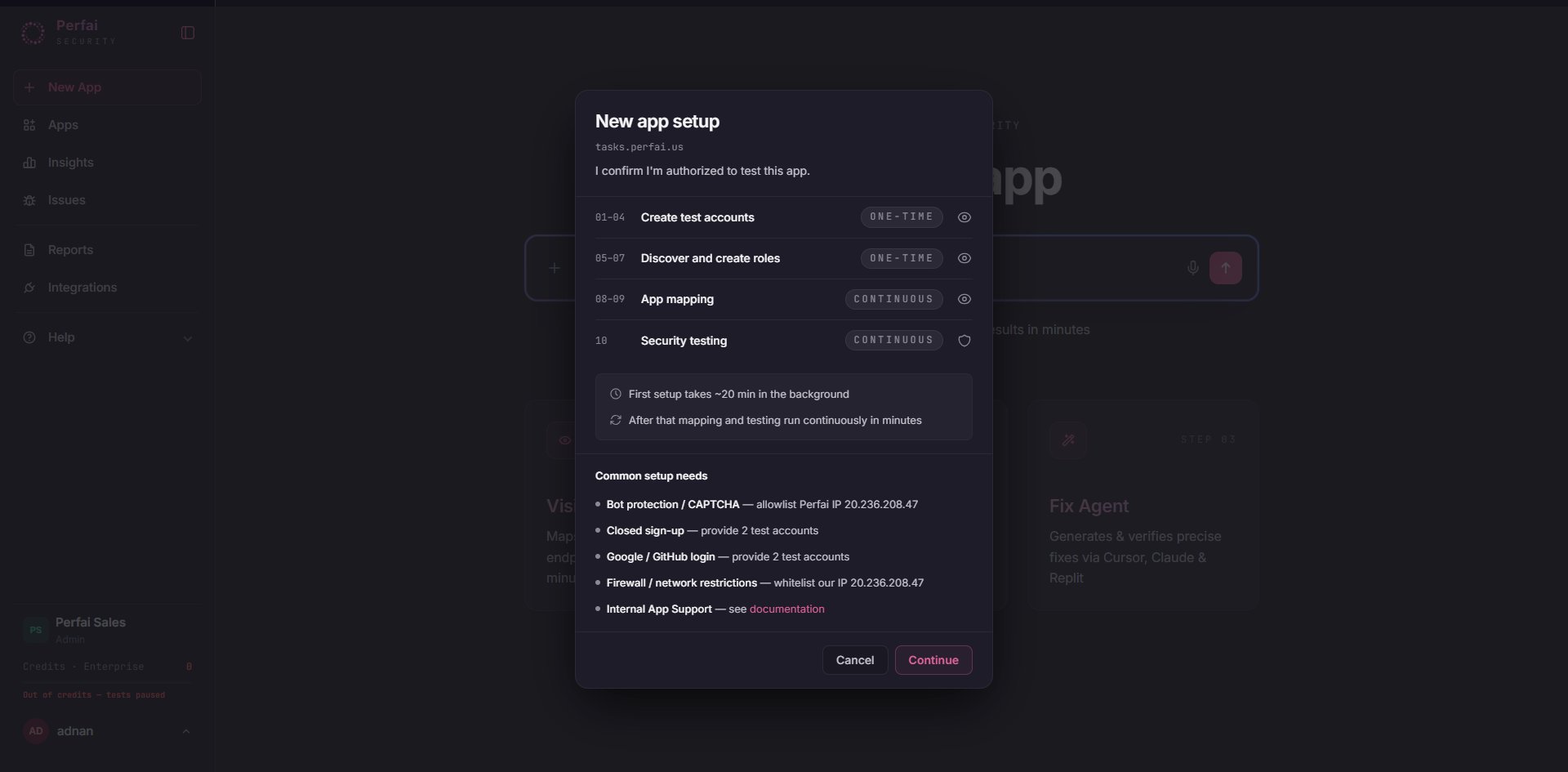 | # | Task | Type | What it does |
| - | ----------------------- | ---------- | --------------------------------------------------- |
| 1 | Create Test Accounts | One-time | Creates two admin accounts from separate tenants |
| 2 | Discover & Create Roles | One-time | Maps all permission roles in the app |
| 3 | App Mapping | Continuous | Records every workflow, API, and data type |
| 4 | Security Testing | Continuous | Runs thousands of cross-role and cross-tenant tests |
**One-time** tasks run once to bootstrap your environment. **Continuous** tasks re-run automatically on every future scan.
The Vision Agent opens a cloud browser and attempts to auto-create accounts. When it can't find a public sign-up flow — no registration page, invite-only gating, or SSO wall — the **Create Test Accounts** task turns red and the agent surfaces three options.
| # | Task | Type | What it does |
| - | ----------------------- | ---------- | --------------------------------------------------- |
| 1 | Create Test Accounts | One-time | Creates two admin accounts from separate tenants |
| 2 | Discover & Create Roles | One-time | Maps all permission roles in the app |
| 3 | App Mapping | Continuous | Records every workflow, API, and data type |
| 4 | Security Testing | Continuous | Runs thousands of cross-role and cross-tenant tests |
**One-time** tasks run once to bootstrap your environment. **Continuous** tasks re-run automatically on every future scan.
The Vision Agent opens a cloud browser and attempts to auto-create accounts. When it can't find a public sign-up flow — no registration page, invite-only gating, or SSO wall — the **Create Test Accounts** task turns red and the agent surfaces three options.
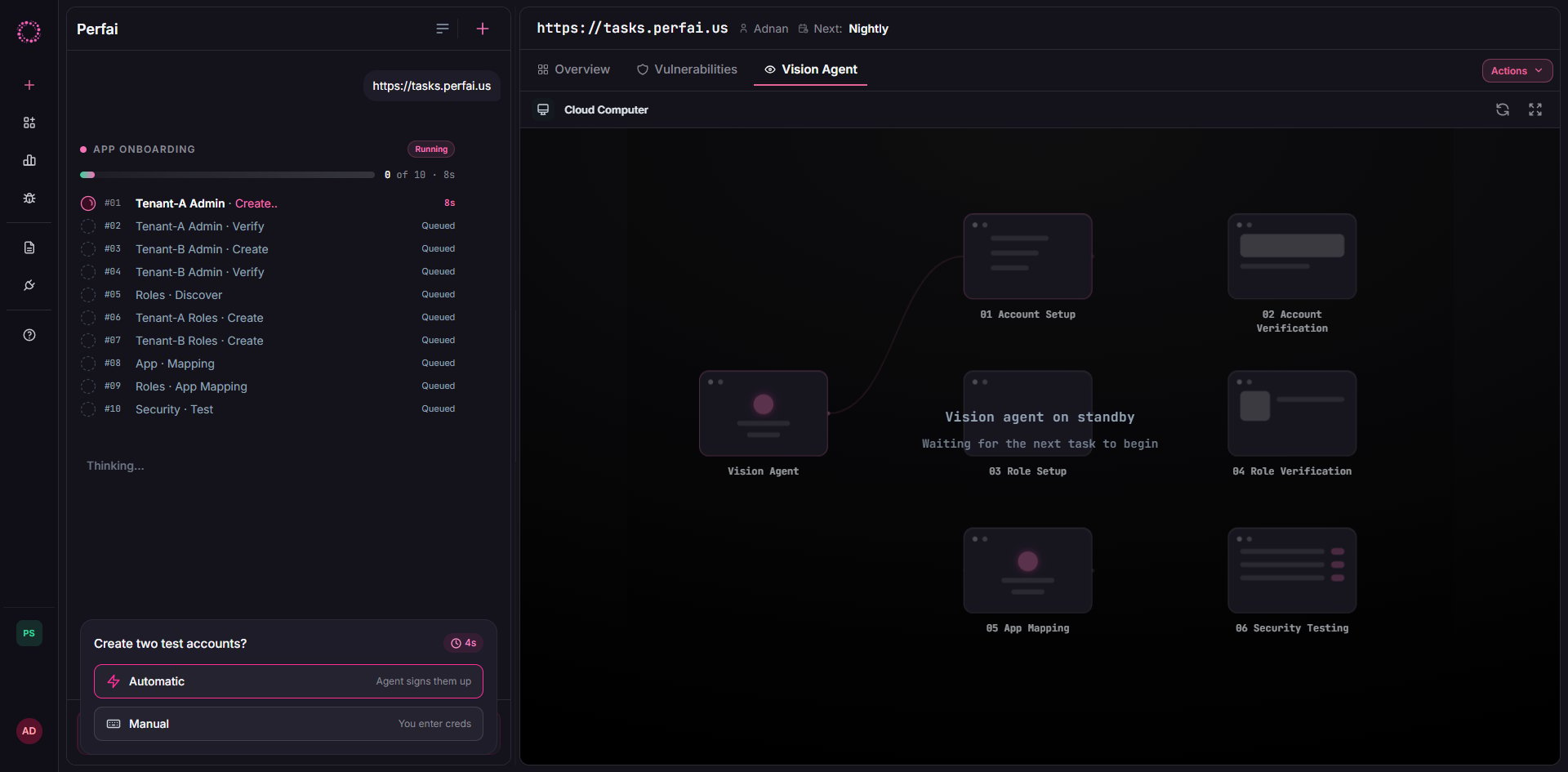 | Option | When to use |
| ---------------------------------------- | ---------------------------------------------------------------------------------------------------------- |
| **Yes** — provide a sign-up URL | Your app has a registration page not linked from the homepage. Paste the direct URL and the agent retries. |
| **Manual — I'll provide email/password** | You have pre-provisioned accounts ready to enter. |
| **Skip — I'll add accounts later** | You need time to provision accounts. Testing pauses until you return. |
Select **Manual — I'll provide email/password**.
The credential form appears. Enter email and password for both accounts, then click **Save Credentials**.
| Option | When to use |
| ---------------------------------------- | ---------------------------------------------------------------------------------------------------------- |
| **Yes** — provide a sign-up URL | Your app has a registration page not linked from the homepage. Paste the direct URL and the agent retries. |
| **Manual — I'll provide email/password** | You have pre-provisioned accounts ready to enter. |
| **Skip — I'll add accounts later** | You need time to provision accounts. Testing pauses until you return. |
Select **Manual — I'll provide email/password**.
The credential form appears. Enter email and password for both accounts, then click **Save Credentials**.
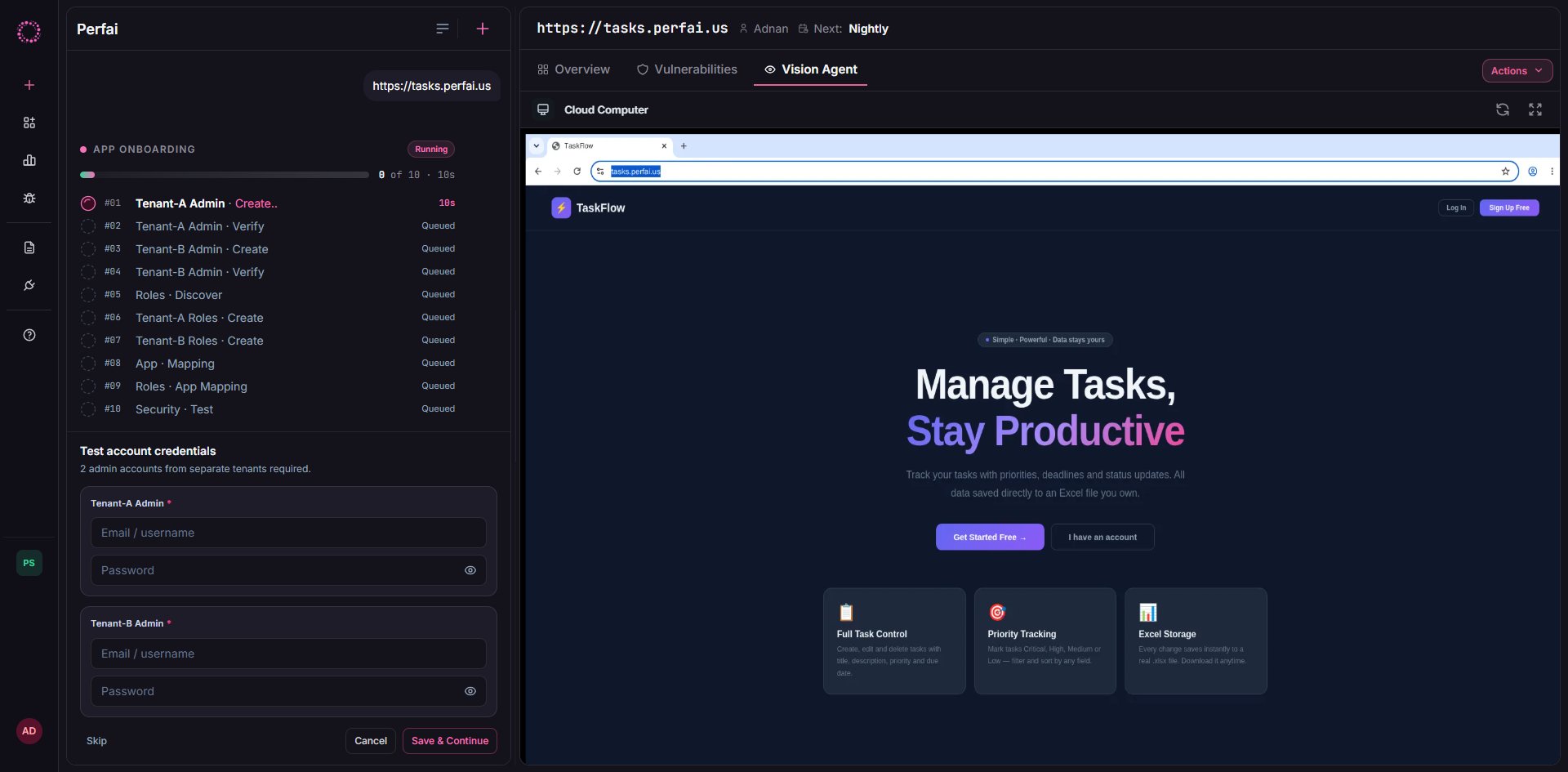 | Field | What to enter |
| ------------------------------------ | --------------------------------------------------- |
| **Test Account 1** — Admin, Tenant A | Admin account for your first tenant |
| **Test Account 2** — Admin, Tenant B | Admin account from a **different**, isolated tenant |
Both accounts must be admins from **different tenants**. Two accounts in the same tenant will cause all cross-tenant BOLA tests to return false negatives — you'll miss your most critical findings.
The Vision Agent immediately logs in as each account and verifies access using a live cloud browser session.
| Field | What to enter |
| ------------------------------------ | --------------------------------------------------- |
| **Test Account 1** — Admin, Tenant A | Admin account for your first tenant |
| **Test Account 2** — Admin, Tenant B | Admin account from a **different**, isolated tenant |
Both accounts must be admins from **different tenants**. Two accounts in the same tenant will cause all cross-tenant BOLA tests to return false negatives — you'll miss your most critical findings.
The Vision Agent immediately logs in as each account and verifies access using a live cloud browser session.
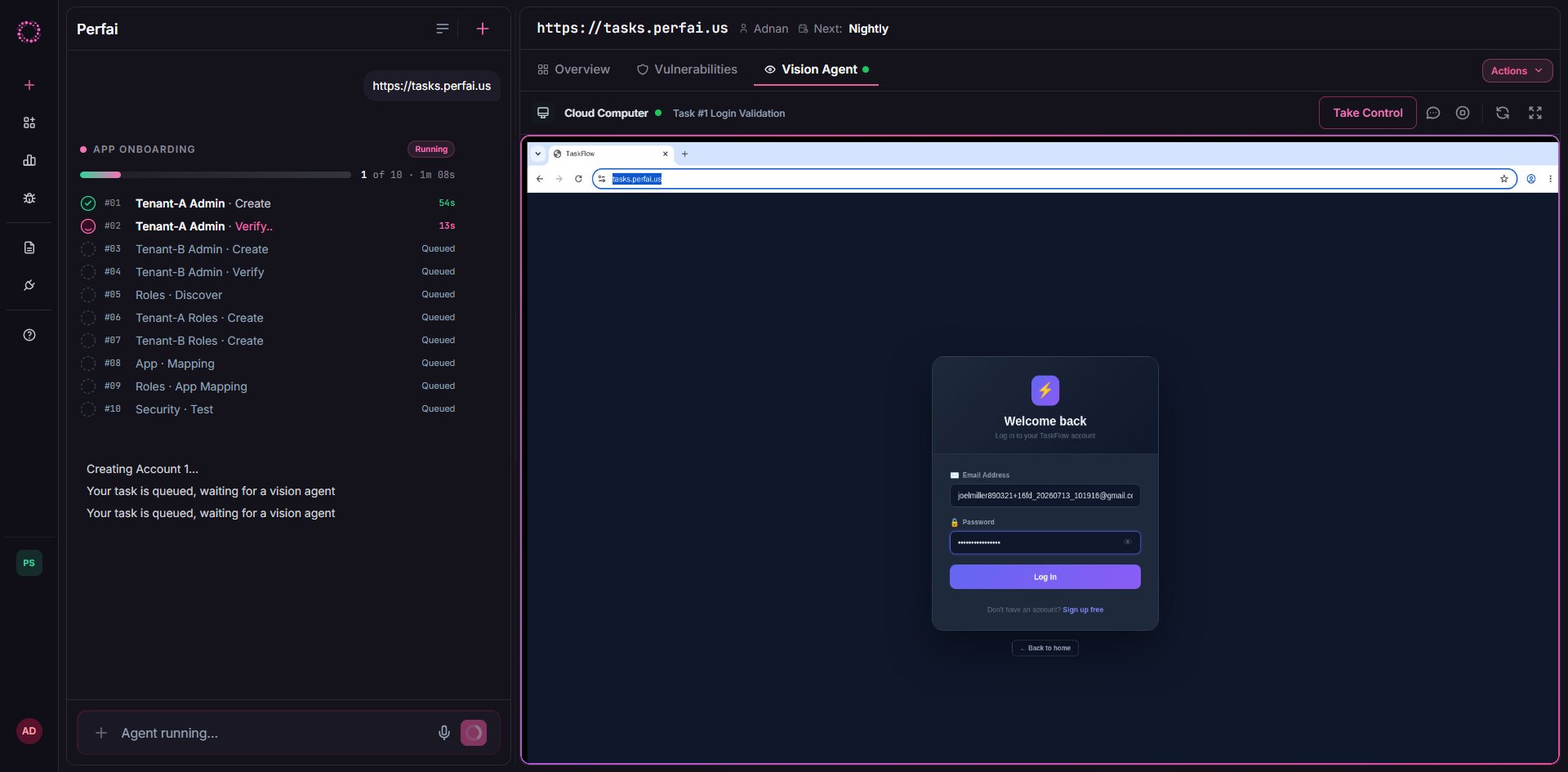 Once both logins are confirmed, **App Mapping** starts automatically — no additional input needed. The agent navigates your entire app, recording every workflow, API endpoint, and data type it finds.
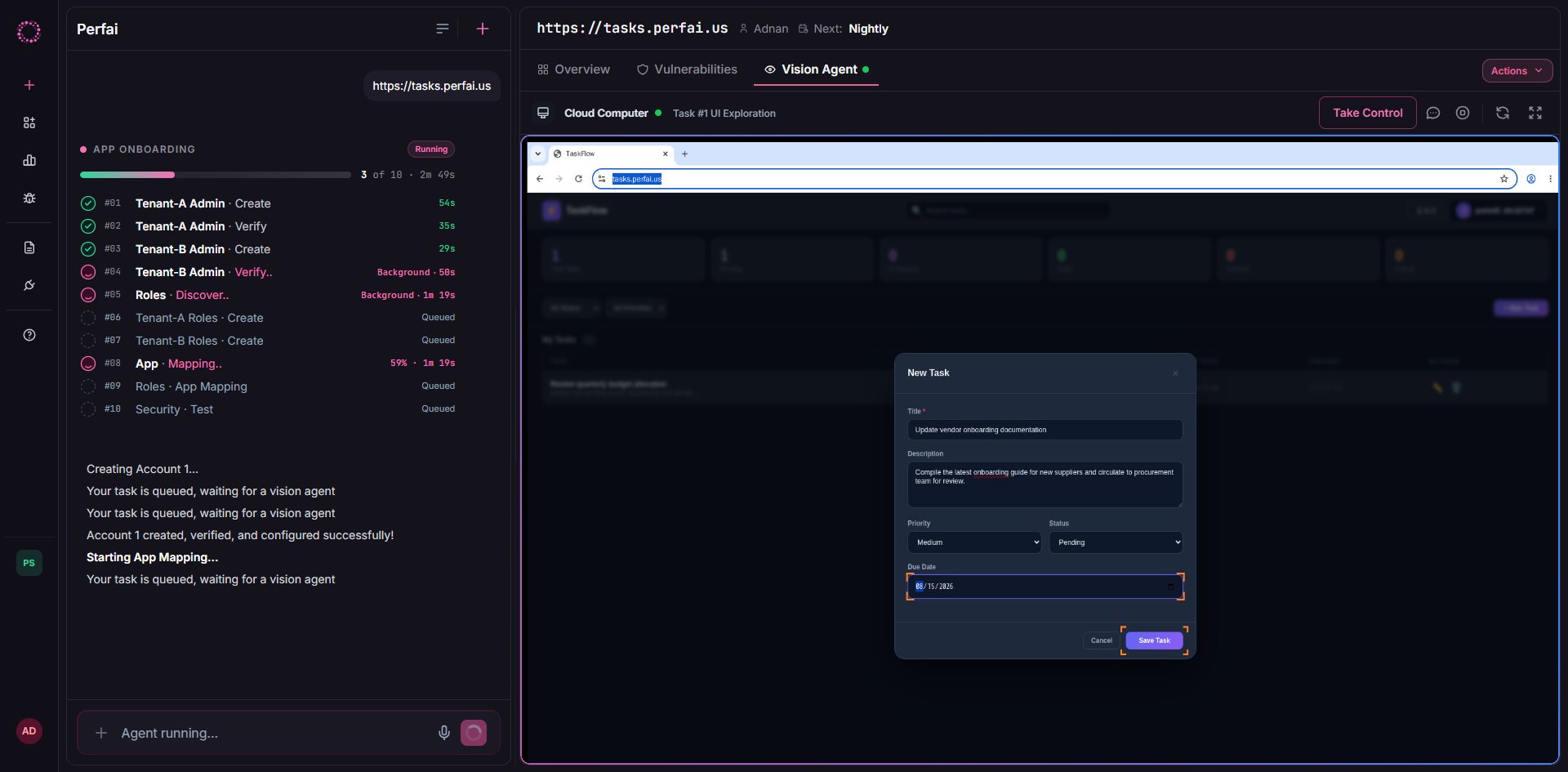 The left panel logs every step in real time:
```
Verifying Login: Account 1...
ACCOUNT_CREATION_COMPLETED
App mapping has started. This process may take up to 10 minutes.
Step 3: Attack Surface Mapping
```
When mapping completes, the Security Agent begins running permission tests automatically. Findings appear in the **Overview** and **Security** tabs.
***
## After the walkthrough
Once both accounts are verified and the app is mapped, the full Perfai pipeline runs on its continuous schedule. You won't need to re-enter credentials — they are stored encrypted and reused on every subsequent scan.
| Task | Frequency |
| ---------------- | ----------------------------------------- |
| App mapping | Continuous — re-maps as your app changes |
| Security testing | Continuous — re-tests the updated surface |
| Full scan | Nightly by default |
***
## Frequently asked questions
Perfai currently requires email/password credentials. For SSO-only apps, create a dedicated test account in your identity provider with password login enabled, or use a service account set up specifically for automated testing.
Yes. Accounts with restricted permissions cause the Vision Agent to miss endpoints, producing incomplete attack surface coverage and fewer findings. Use the broadest admin role available in your test environment.
No. Cross-tenant isolation is what Perfai tests. Two accounts in the same tenant cannot produce BOLA or cross-tenant privilege escalation findings — the most critical vulnerability class Perfai detects.
Credentials are encrypted at rest and in transit. They are tied to your app record and used only when agents run. You can rotate or remove them any time from the app's **Settings** tab.
Open your app dashboard → **Tasks** → **Create Test Accounts** and click the task to re-open the credential form. After saving, trigger a new scan from **Actions** or wait for the next nightly run.
The left panel logs every step in real time:
```
Verifying Login: Account 1...
ACCOUNT_CREATION_COMPLETED
App mapping has started. This process may take up to 10 minutes.
Step 3: Attack Surface Mapping
```
When mapping completes, the Security Agent begins running permission tests automatically. Findings appear in the **Overview** and **Security** tabs.
***
## After the walkthrough
Once both accounts are verified and the app is mapped, the full Perfai pipeline runs on its continuous schedule. You won't need to re-enter credentials — they are stored encrypted and reused on every subsequent scan.
| Task | Frequency |
| ---------------- | ----------------------------------------- |
| App mapping | Continuous — re-maps as your app changes |
| Security testing | Continuous — re-tests the updated surface |
| Full scan | Nightly by default |
***
## Frequently asked questions
Perfai currently requires email/password credentials. For SSO-only apps, create a dedicated test account in your identity provider with password login enabled, or use a service account set up specifically for automated testing.
Yes. Accounts with restricted permissions cause the Vision Agent to miss endpoints, producing incomplete attack surface coverage and fewer findings. Use the broadest admin role available in your test environment.
No. Cross-tenant isolation is what Perfai tests. Two accounts in the same tenant cannot produce BOLA or cross-tenant privilege escalation findings — the most critical vulnerability class Perfai detects.
Credentials are encrypted at rest and in transit. They are tied to your app record and used only when agents run. You can rotate or remove them any time from the app's **Settings** tab.
Open your app dashboard → **Tasks** → **Create Test Accounts** and click the task to re-open the credential form. After saving, trigger a new scan from **Actions** or wait for the next nightly run.