

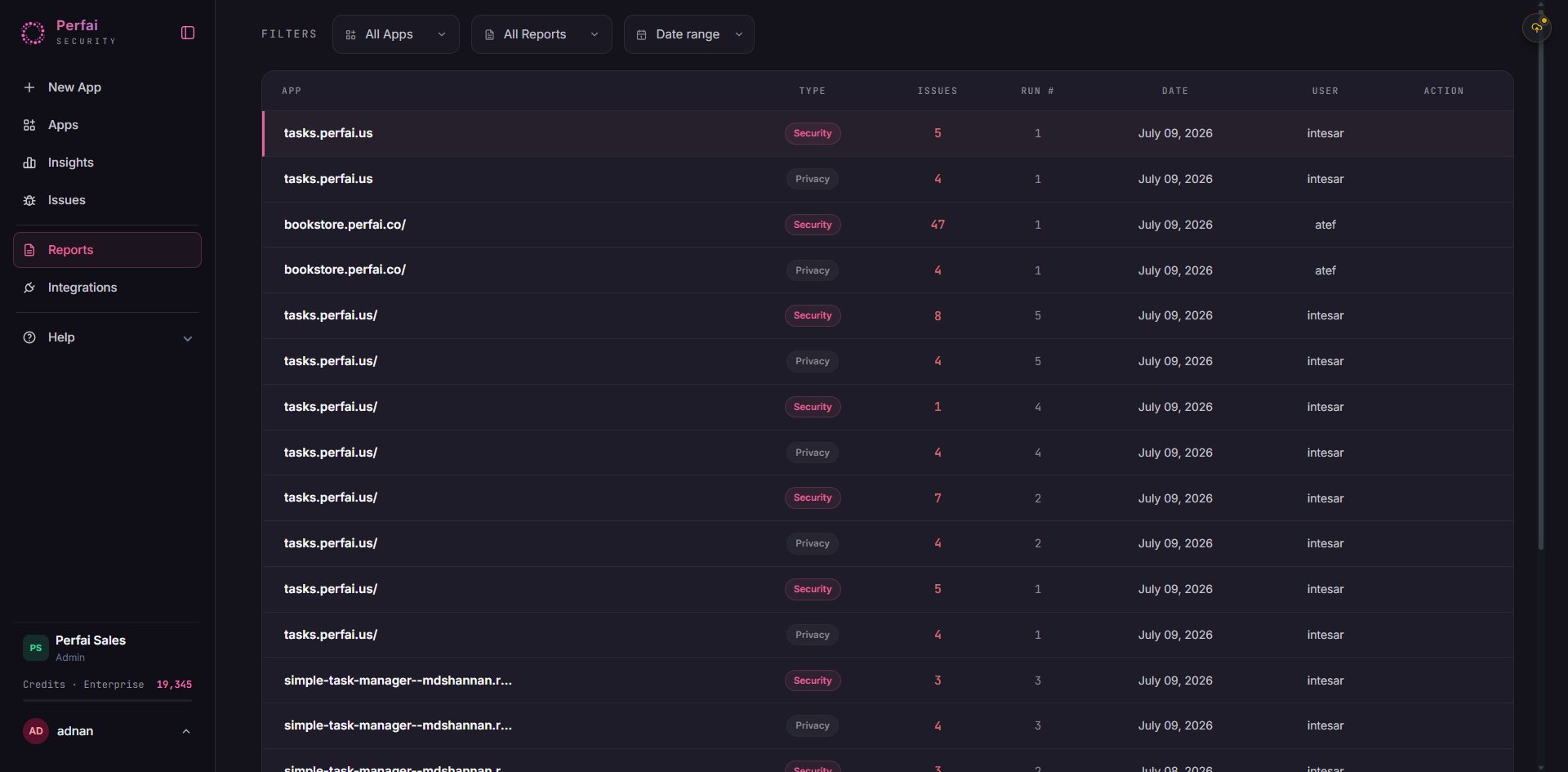
What is the Reports page?
Reports is your complete scan history. Every time Perfai’s Security Agent or Privacy Agent runs against an app, it produces a report — logged here with the app name, report type, issue count, run number, date, and the team member who triggered it. This is where you go to:- Download a security or privacy report to share with leadership, auditors, or clients
- Track how findings change between scan runs (did the latest deploy introduce new issues?)
- Demonstrate continuous security testing to compliance frameworks
- Hand off findings to development teams with full context attached
The reports table
Each row in the reports table represents a single completed scan run:Report types
Perfai generates two types of reports:Security Report
Covers broken access controls — BOLA, privilege escalation, broken authentication, and all permission-based vulnerabilities found by the Security Agent. Mapped to OWASP API Security Top 10 and includes CVSS scores for every finding.Use for: security reviews, penetration test evidence, engineering triage, bug bounty comparison.
Privacy Report
Covers sensitive data exposure — which data types are accessible by which roles, whether PII is leaking across role boundaries, and data minimization gaps. Separate from the access control analysis.Use for: GDPR/CCPA compliance evidence, data protection audits, privacy impact assessments.
Every app gets both a Security and a Privacy report on each scan run. You’ll see them as paired rows in the table — one
Security badge and one Privacy badge for the same app and date.Reading the issue count
The Issues column is the fastest way to see what changed between runs:- A rising issue count between runs means new vulnerabilities were introduced — likely from a recent deploy
- A falling count means your team is fixing issues faster than new ones are being introduced
- A 0 means the scan ran clean — no findings for that report type
Filtering reports
Use the filters at the top to narrow your view:What’s in a report
When you open or download a report, it contains:1
Executive summary
Overall risk score, total findings by severity, key highlights — the one-page version for leadership and non-technical stakeholders.
2
Attack surface map
Complete list of UI workflows, API endpoints, roles, and sensitive data types discovered by the Vision Agent for this scan run.
3
Full findings list
Every issue with severity, CVSS score, vulnerability category, affected endpoint, attacking role, expected vs. actual behavior, and a reproduction step.
4
Standards mapping
Each finding mapped to OWASP API Security Top 10 (2023), OWASP Top 10, or Perfai’s proprietary rules — ready to use as compliance evidence.
5
Remediation guidance
Specific fix recommendations for each finding category. Not generic advice — guidance based on what Perfai actually observed in your app.
Downloading a report
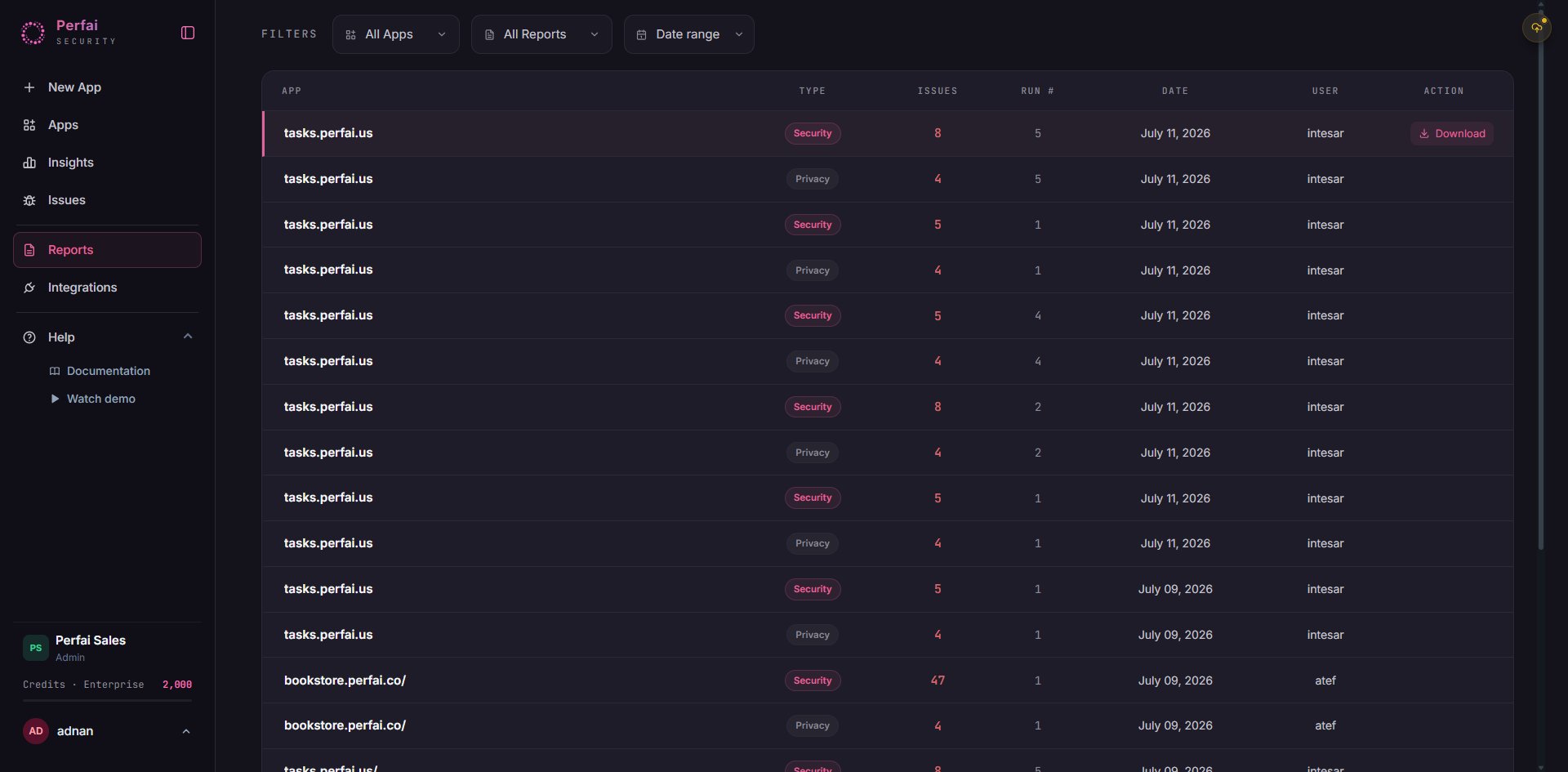
Click the··· menu at the right end of any report row, then click Download.
Sharing reports
From the··· action menu on any report row:
- Download — generate and download a formatted PDF immediately
- View — open the full report in the dashboard
- Export to Jira / Linear / GitHub — push all findings as tickets with full context attached, so developers can start fixing without hunting for details
Auto-sync: keep reports safe forever
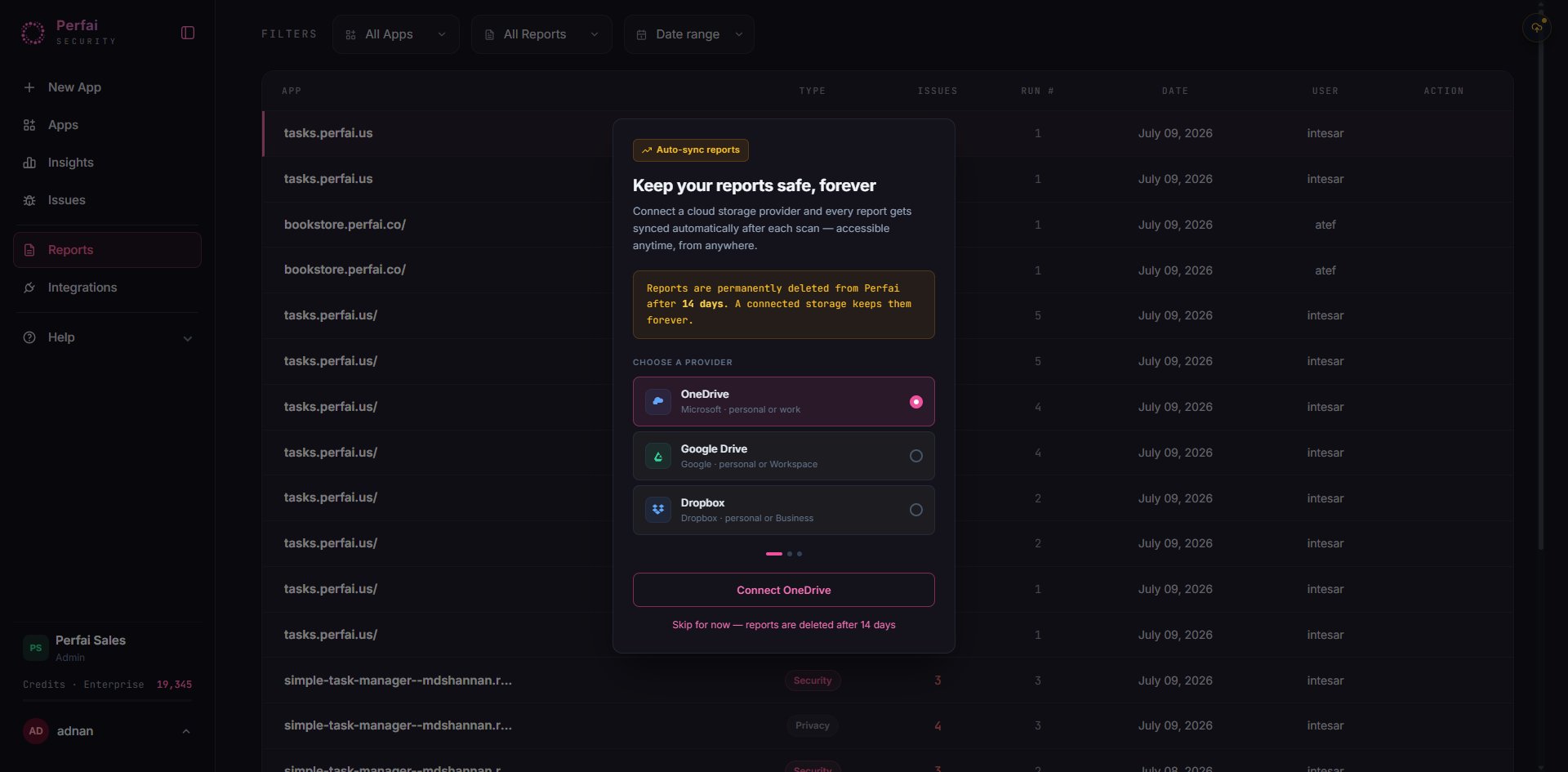
Click Connect [Provider] to authorize the storage link. Once connected, every new report is deposited automatically — no manual exports needed. If you’re not ready, click Skip for now but note that reports will be deleted after 14 days without a connected provider.