

What is the Users page?
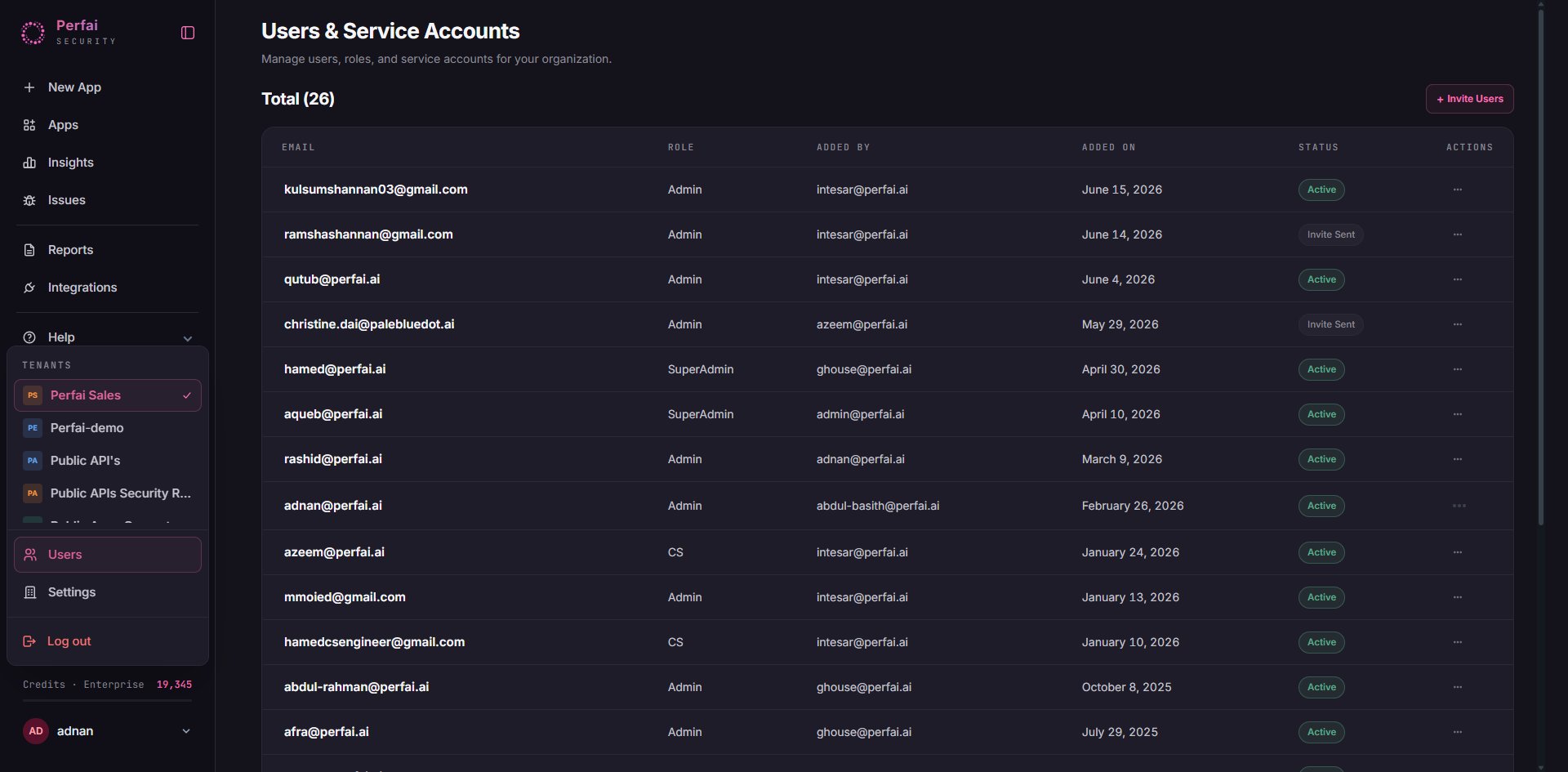
Users & Service Accounts is where you manage access to your Perfai organization. From here you can invite new team members, review active users and their roles, track pending invitations, and manage service accounts used by automated workflows. The page shows every person and system identity that has access to your organization — 24 users in the example above — with their role, who added them, when they were added, and their current status.User table
Each row in the users table represents one identity with access to your organization:Role types
Perfai has two built-in user roles:Full-Permission Administrator
Full access to all features — apps, scans, findings, reports, settings, billing, and user management. Can invite and remove users, change organization settings, and manage integrations.Assign to: security leads, CISOs, platform owners.
Tenant Administrator
Administrative access scoped to a specific organization or tenant. Can manage apps and findings within their tenant but cannot change global organization settings or billing.Assign to: team leads, client admins in multi-tenant deployments.
Your organization is shown in the left sidebar under Teams. If you manage multiple organizations (e.g., PerfAI, Inc., Perfai Sales, Perfai-demo), each has its own user list. The checkmark next to the currently active org is shown in the sidebar.
Inviting users
Click + Invite Users in the top right corner. The Add Users dialog appears.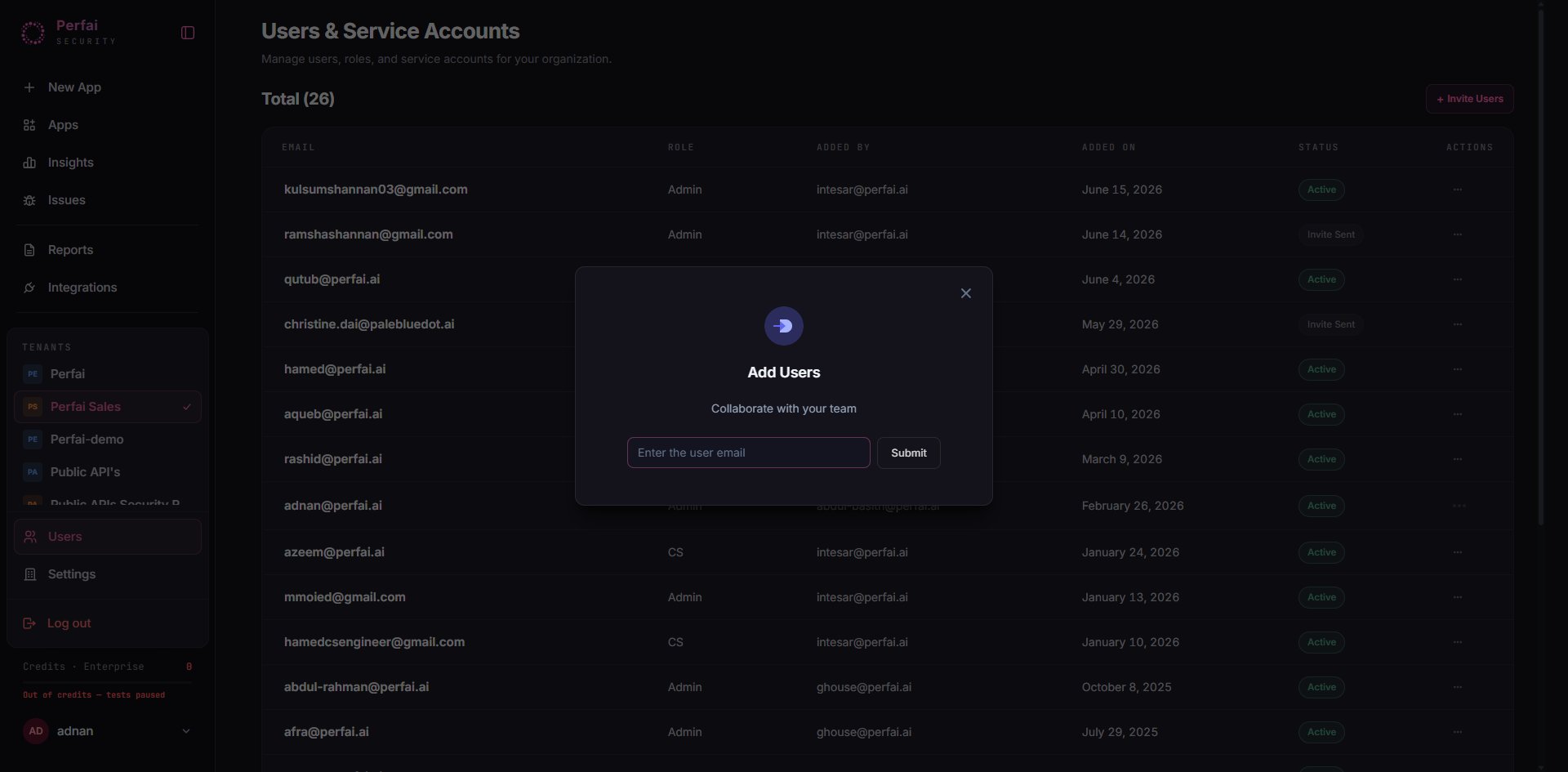
Removing a user
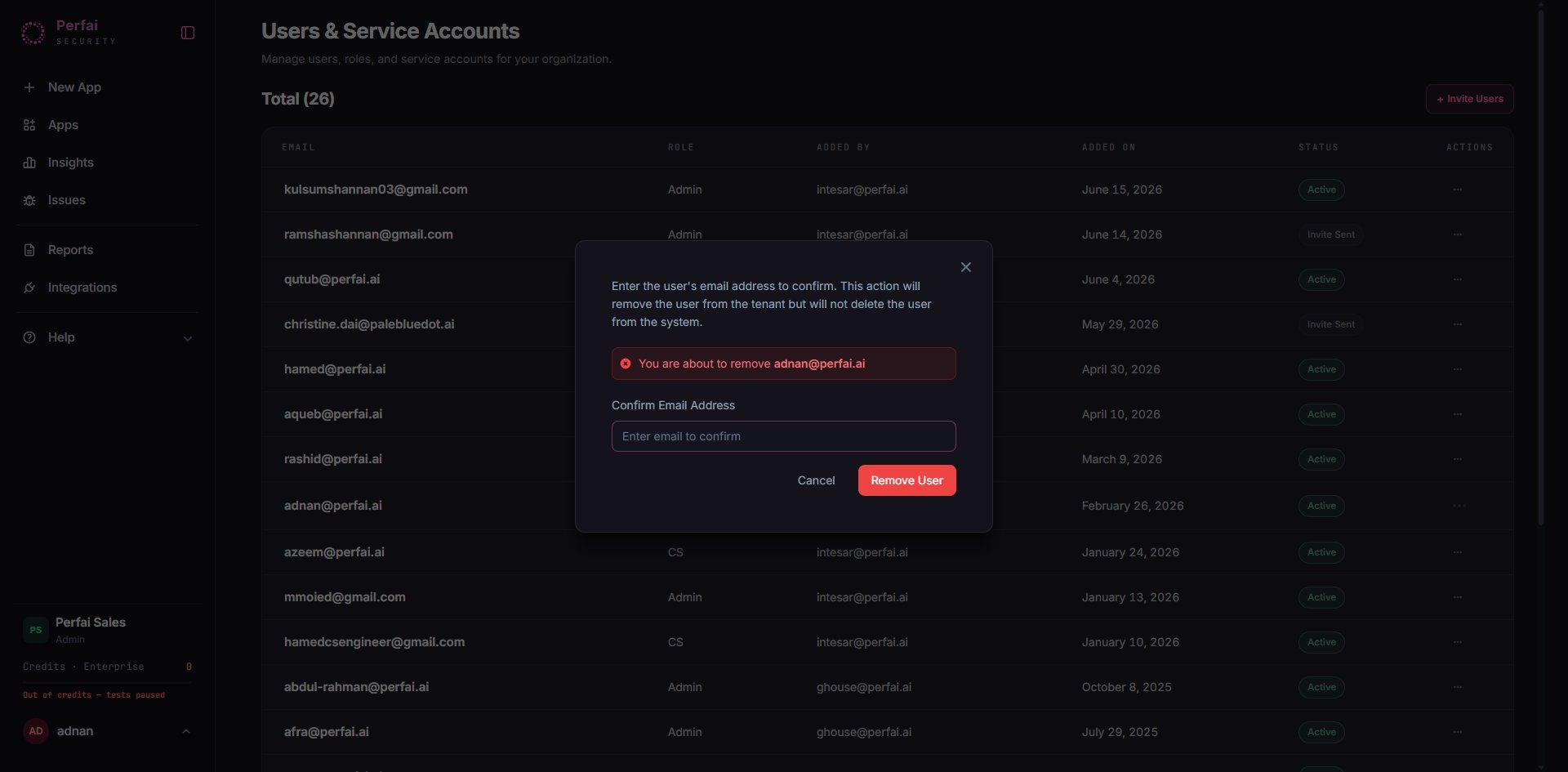
Click the··· menu on any user row and select Remove. A confirmation dialog appears requiring you to type the user’s email address before the removal can proceed.
Service accounts
Service accounts appear alongside human users in the same table. They’re used for:- CI/CD automation — triggering scans from your deployment pipeline without using a personal account
- API access — programmatic access for internal tooling that reads findings or triggers scans
Multi-organization access
If your team manages multiple organizations in Perfai — for example, separate orgs for different clients, product lines, or environments — each org has its own independent user list. Switch between organizations using the Teams panel in the left sidebar. The active organization is marked with a checkmark. User roles and permissions are scoped per organization — being an admin in one org doesn’t grant access to another.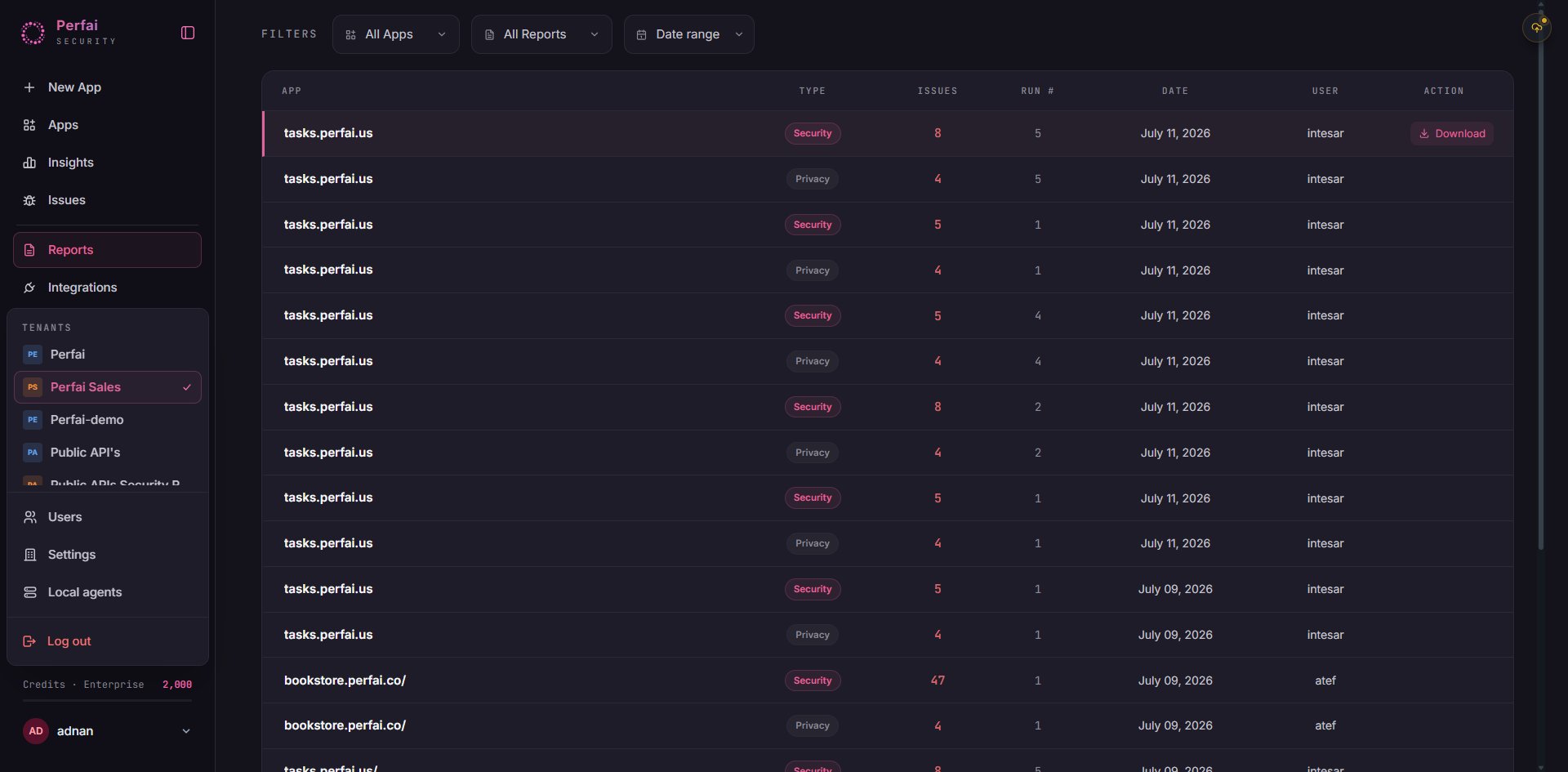
Best practices
- Keep the user list current — remove access promptly when team members leave or change roles
- Use Tenant Administrator for client access — if you’re running Perfai for customers or external stakeholders, Tenant Admin scope prevents them from modifying org-wide settings
- Audit the list periodically — the Added On column makes it easy to spot accounts that haven’t been reviewed in a while
- Use service accounts for automation — don’t use a personal account’s credentials in CI/CD pipelines; create a dedicated service account so access can be revoked without disrupting a person’s login